
You can get free iPhone ringtones from MacMost.com. Just subscribe to the free iPhone ringtones podcast. You can then download the 100+ free iPhone ringtones to your iTunes library, and then set up your iPhone to make them all available to be used as ringtones.
To use the MacMost free iPhone ringtones, you must first subscribe to the podcast, or download the ringtones manually from the free iPhone ringtones page. You can download them manually by pressing the Ctrl key on your keyboard and clicking on the M4R link for the ringtone you want to download.
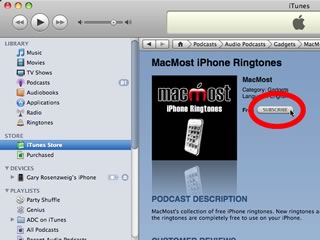
To subscribe to the Podcast, click on this link to launch iTunes and go to the MacMost iPhone Ringtones podcast. You will only see two episodes of the podcast, because iTunes won’t show the 100+ episodes are are simply ringtones. Then click on the Subscribe button.
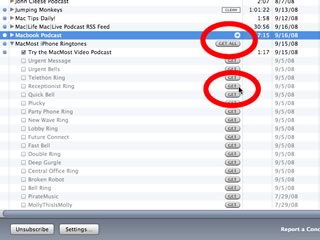
Then look in your iTunes Podcast section to view all of the podcasts you currently subscribe to. Select the MacMost iPhone Ringtones podcast and expand it to show all of the ringtones. You can press the Get button next to ringtones you want, or click on the Get All button to download them all.
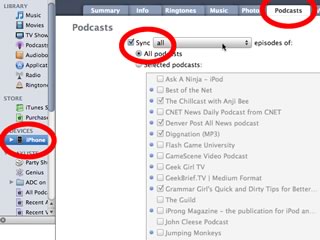
The hardest part is to get the ringtones to transfer to your iPhone. Method #1 is to sync all episodes of the MacMost iPhone Ringtones podcast to your iPhone. With your iPhone plugged in, select it on the left side of iTunes. Then select the Podcasts tab. Next, change your options to have all episodes of all podcasts sync. Alternatively, you can have all episodes sync, but select which podcasts you want, making sure you include the MacMost iPhone Ringtones podcast.
Method #2 is to create a smart playlist with all of your ringtones. In iTunes, select the File menu, Create Smart Playlist. Now, create a smart playlist with the options of “Kind” containing “Ringtone.” Make sure “Live Updating” is selected as well.
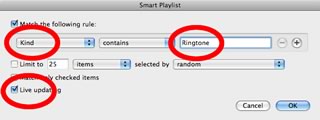
Check the new smart playlist and rename it if you like to “MacMost Ringtones.” You should see all of the ringtone “episodes” you downloaded in the podcast. Since Live Updating is selected for the smart playlist, new rintones will be added to the list as they are added to the podcast.
Now go back to your iPhone settings and select the Music tab instead of the Podcasts tab. Make sure you are either syncing all Playlists, or at least the MacMost Ringtones smart playlist is set to sync.
Once you use either method #1 or #2, you should see your ringtones appear on your iPhone under Settings, Sounds.

Keith: There is no way to set a custom text message sound on the iPhone yet. We'll have to wait for Apple to add that option.
That is so annoying! I really want to be able to change my text tone!
Josh
That is retarded....I just paid money to Itunes for a ringtone for the text message and spent hours trying to figure out how to make it work! Why are they selling test message ringtones if you can't use them??? I got two ringtones from the Itunes store that said for Iphone and while they are in the Ipod section on my phone, I can't make them work as a ringtone.
Thanks for the free ringtones. I'm so glad hat I have options now. The ringtones that came with the phone are boring. Do you update new ringtones regularly?
AJ: Yes. Look for an exciting new set next week.
Great job guys! Appreciate they play-by-play instructions. Finally - ringtones!!!
Hi guys, great tones. I also have them in the ringtone tab in iTunes, but when I try to sync from there, they're not transferred to my iPhone. And I would like to transfer only a few selected ringtones, in stead of the whole podcast. Or is there a way to do that?
Regards,
Joost
Joost: Yes. Just create a playlist and drag the ringtones you want into it. Then set that playlist to sync with your iPhone.
Hi Rosenz, thanks for that. But I tried that and it's not working... I created a playlist, named it Beltonen (which is Dutch for ringtones) and tried to drag the tones I wanted onto it. Neither from the podcast list or the ringtone section in iTunes I can drop them onto the playlist. What am I doing wrong?
Joost: You need to do it from the Music library. It doesn't work, for some reason, if you do it from the Podcast library or Ringtones library.
Rosenz, I don't get it. I don't see the ringtones in my Music library, only in the podcast and ringtone sections... How do I do this? Excuse me for asking for what might be an easy thing... :-)
Joost: At this point I can only suggest reviewing both the text instructions and the video and starting again. There is probably just something you missed, or a setting you have set to something different.
Hi Rozenz, Happy New Year from Poland.
I tried to subscribe to your feed with iPhone ringtones in iTunes, but it says that it is not possible with Polish iTunes Store. Can you do something about it or is Apple policy? Anyway, if I download from web page ringtones work great, thank you very much.
Joost, check you preferences in iTunes - you can select what elements are visible and what not visible - see if in your copy of iTunes Ringtones are visible. Have fun!
Adam: You should be able to subscribe to the podcast feed from any country. Not sure why you are getting that message. There are no restrictions set on our end.
Thanks for the downloadable ringtones on this site. I can't wait to check out the ringtones from your podcast. I hope Apple opens up the iPhone to customizable SMS Tones. Thanks for your contribution to the iPhone community.
I downloaded the RT and they are displayed in iTunes in Ringtones. I selected a dozen to be synced. I sync the phone and I see nothing in sounds other than the Crapple Ringtones that ship with the 3G phone?????
DS: Are you following the rest of the instructions like also syncing all episodes of the podcast? Or, alternatively putting the ringtones in a smart playlist and syncing that?
I have had this downloaded, but I only have one showing on my phone. yes, all episodes are selected, but only one alternate ringtone is under sounds. I have also done both smart playlist as well as podcast instructions that you listed. please help me understand.
dnevans: Sounds like you have it set to only transfer the latest episodes of the podcast, instead of ALL of the episodes.
I did not read all the post/responses, too many. I missed how (simple way) to just sync the ones I want and NOT all ringtones.
UPDATE:
Disregard the above post as I figured it out. :)
Hi, I have followed it to the letter. Does it work for the 2G?
Debs: Yes, it works for all iPhones.
i dont get it helpp
Use one of the links at the top of this page to get step-by-step instructions.
I am confused by your mixing instructions for the ringtone smartfolder option with instructions for the podcast option. Some users (like me) have gone to your website and downloaded individual tones as you suggest. These get automatically installed in a ringtones folder in the ITunes Library.
When we set up the smartfolder as you instruct, the tones do not get transferred to the smartfolder. In previous responses, you have said the solution is to get the tones into the music folder on the computer. I have tried dragging items from the ringtones folder into the music folder but it does not work.
Please clarify how tones can be transferred to the music folder.
Please clarify if it is possible to get individually-downloaded tones over to iPhones WITHOUT going down the podcast route at all.
If it is possible, I suggest you give separate instructions for each route and, in the case of individually-downloaded tones, you clearly explain how we get tones into the music library.
I think you are offering a great service which needs clearer instructions and I thank you for it.
Roger
Further to my recent request for help, I think I have found the answer!
It seems, for reasons I do not understand, that when you create the smart playlist as you instruct, a ringtones folder is created inside the iTunes music folder but this is not visible within iTunes and the smart playlist remains empty!
You can only see the ringtones folder if you go into the iTunes music folder using the Finder! Go: Music/iTunes/iTunes Music/Ringtones. The folder is named "Ringtones" even though I called the smart playlist something different.
I do not understand any of this! However I now have the tones accessible on my iPhone even though the smart playlist is empty in iTunes. Note also that the new tones appear in a custom tones list ABOVE the standard tones list.
I hope this helps someone.
Roger
how to download iphone ringtones andhow to see it
I think the info at the top of the page explains exactly that.
Hi Gary I got your free ringtones Thank You :)
Can you please tell me how I can get free music ringtones or convert a song as a ringtone.. And I mean music from the top 100 the latest songs.
So you mean you want to convert some .mp3 files you have to ringtones? You can do this. See episode 88: http://macmost.com/make-your-own-iphone-ringtones.html
This is worth every minute spent figuring it out! I finally did it!!1
Thank you very much. Very straightforward!
Will these directions work for my Motorola Droid? I really only want 2 or 3 of the ringtones. THANKS!
No. These directions are specific for the iPhone. But you can download the .mp3 versions of the files and use some other methods for getting the .mp3 files on to your Droid -- I'm not sure what those methods are, you'd need to find a Droid site for that.
Love my ringtones, and now my husband and daughter are hooked. But with three Iphones in the house we would love to be able to access different message tones. We have to have different settings to know who's got a message and they are getting really old and boring !!
Gary: What kind of ringtones are there because i didnt neccessairly unserstand it.
Just go to http://macmost.com/iphoneringtones/ and see. There are lots to choose from.
I have composed little ringtones for my I-Phone, using my keyboard, and the Ringtone-Pro application. I have downloaded it to my I-Phone. Can I sell my ringtones? How do I go about it? When people hear my phone ringing with my ringtones, they like them!
I don't know how you would sell them. I'm sure to sell them on iTunes you need to be affiliated with a major music label. You could always sell the .m4r as a downloaded file through a service, but it would be far from ideal. I've never seen anyone do that.
Hi Gary,
I have subscribed to the podcast and I can see the ringtones but it will not allow me to "get" any of them. The only thing I can get is the Just solitaire promo. Now it maybe that I don't currently have an iPhone attached to my iTunes(PC) but I am upgrading to iPhone 4 next week so just trying to get prepaired. I was just wondering if you have any advice on this issue. Many thanks for your great quality content!!
I can drag individual ring tones from the site to my desktop but cannot drag them into iTunes. They simply don't appear in the library. Is this a problem with OS 10.7 Lion or am I doing something wrong?
Did you look in the Ringtones section of your iTunes library? They will be there, not in the Music section. Try dragging them to your desktop first, then from the desktop to iTunes. Make sure you get the .m4r versions of the files, not the preview (mp3) versions.
Thank you Gary. It's obvious when you know how! And thank you for your podcasts; the instruction is most useful.
Regards
It looks like this podcast with ringtones is gone now. What happened?
Right. Apple decided to no longer allow (most) podcasts that were just collections of ringtones. No matter -- I always thought it was easier to get the ringtones by downloading them directly anyway.