
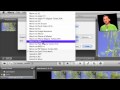
There are many ways to export your video from iMovie. Using the Sharing menu, you can go directly to iTunes, iDVD, YouTube and more. But using the Export Movie and Export using QuickTime options give you greater control.
▶ You can also watch this video at YouTube.
▶ Watch more videos about related subjects: iMovie (137 videos).
▶ You can also watch this video at YouTube.
▶ Watch more videos about related subjects: iMovie (137 videos).
 Want to know more about how to use iMovie on your Mac?
Video Transcript
Hi this is Gary with MacMost Now. Today's episode, let's look at iMovie export options. So I often get asked, what are the best settings for me to export my video from iMovie. Now there's no one answer for this. It all depends on what you plan on using the video for, what the original quality of the video was, where you end up putting the video, all sorts of different things. So instead of addressing it from that viewpoint, let just look at all the different options and talk about them. So you can find all your export options under share in iMovie and there are a ton of them. The first part of this menu here gives you some very quick options like sharing directly to iTunes, to iDVD, the Media Browser which is a shared library between programs like iDVD, garage band and other things and right up to YouTube and right up to MobileMe Gallery. If we select iTunes we can see we are given some standard options here, we're gonna see this repeated a lot in some of this menus here. Now I don't actually recommend using most of these options. You see this are really good shortcuts. If you wanted just to post a casual video to YouTube just something very quick or something very quick to MobileMe Gallery, it's just important maybe to share with some friends then these could be good options specially if you do this a lot. But otherwise I really recommend going to Export Movie or Export Using Quicktime below, and exporting the movie exactly where you want it, and then manually uploading it to YouTube of MobileMe using the regular interface specially for YouTube. You get a lot more control when you actually login to YouTube and actually go to your channel go to the upload page and upload from there. As for going to iDVD, I've heard of lots of reports that this quick function would just take the video from iDVD...


My principal iMovie use is to make DVDs for the family. Quality is important because they almost always contain some very old video and scanned photos. As a result of expansive comments (especially interlaced/de-interlaced debates that seem to never end) in Apple's iMovie discussions, I export all my iMovie 09 work (which I use for almost all the editing) into iMovie HD via the QuickTime Movie format using the Intermediate codec. I then complete the music tracks and voice over, save the movie in iMovie HD, launch iDVD and import the movie file. I think this gives me as good a DVD as I can get out of iMovie and iDVD. Always open to suggestions, though.
very good lesson,but i'm trying to e mail my video to a friend from
my gallery as imovie also what's missing?? he has a pc,my mistakes are what
thk you cb
Don't try to email videos. Videos are usually much too large for email. Instead use a file sharing service (like Dropbox) or a video sharing service (YouTube).
Helpful. Thanks.
How do frames per second, frame size, and video formats relate together?
Any work around for Snapz to record a movie to an external drive?
What other software would you recommend for mac that would accomplish the goal the same for movie recording?
Not sure how to answer your first question -- they are different things, but you can set each one.
Can't you set Snapz to record to any location you want?
You can use a lot for screen recording -- QuickTime X comes with Snow Leopard. You can also use ScreenFlow, Jing Project, Camtasia, and many more. Search around for Mac screen recording software.
What I use is:
Movie to MPEG-4
video format H.264
Data Rate 5000
Image size 1920x1080 HD
Frame rate-current
Key frame-auto
Audio stereo 192
I use this setting for home movies than burn to Verbatim digital DVD-R. The only reason why I use these settings because I record 1080i with my Sony AVCHD 60 GB camcorder.
Gary give me your thoughts. My TV's are flat screen LCD's Sony 32" and Samsung 37". From what I listed above do you think I can export at using image size 1080x720 and still get great results for the TV's I have.
Yes I think so. Because the DVDs are only going to be 720x480 anyway, taking 720p source should be fine. Do a comparison if you can spare a few blank DVDs and some time.
Hi Gary,
I work on different systems with Imovie 9 and 11. When I do export movie and reimport it it comes in as one clip so I cant edit the transitions or frames. How do I fix?
Also, is I--movie OK for broadcast television. Will they take those files for commercials.
Exporting means exporting -- as in the final video. It is not your "project" but the result of your project. iMovie really doesn't allow for the transport of projects between computers. It isn't meant to work that way. But you can go into your Movies, iMovie Projects and Movies, iMovie Events and copy everything from one system to the other -- though resolving conflicts will be an issue and I wouldn't attempt it between two different versions of iMovie as they have different features. I would just work with one video project at a time on one computer (and with iMovie 11, not 9).
I don't think there are any universal standards for what TV stations accept -- I'd contact your intended target and ask them what sort of file you need. Maybe consult with a pro about this as it seems you have specific pro needs.
Thanks for the great tutorial, Gary. I'm a new iMovie user, so I need all the help I can get!
Are there any export settings that cause YouTube videos to display better/worse, depending on the browser?
I've edited a couple videos in iMovie '09 and uploaded them to YouTube, and I've found that when I watch them in Internet Explorer or Firefox, there's an annoying horizontal wobble/pixelation that travels down the screen (top to bottom) about every 10 seconds or so. It's really annoying, and no matter what export settings I use in iMovie, I can't get rid of it. The weird thing is that the video looks fine -- without this problem -- when I use Safari to view it on YouTube. I've tried watching the YouTube video from other computers, all with the same results. My original export (before uploading to YouTube) looks fine, so I'm not sure where the problem is occurring.
Thanks in advance for your help.
P.S. You can find these videos at the "realtornickcurtis" YouTube channel. They're both video tours of a house in Colchester, IL.
Export as high quality as you can, keeping in mind that too high might mean long upload times. YouTube converts them to its format anyway.
I've never seen a horizontal line like that. Do you see it happen for other videos (not yours) on YouTube?
Thanks, Gary. I'll export as high quality as I can.
I've only seen the horizontal line problem on my own uploads -- not for any other videos on YouTube.
Hi there Gary
I need to supply a video to someone in AVI format, but when I export the video to AVI, the audio adjustments I made are ignored (ie the original audio track is what is in the AVI.
The only adjustments I made were making one small section louder (which I learned from your other video)
Any ideas?
Export normally to a QuickTime movie. Then use MPEG Streamclip or some program like it to convert it to AVI.
Thanks Gary - Ill give that a try!
Ben
it worked! thanks Gary.
Gary, You are the most easy trainer on the web. Easy to listen to, to follow, you don't have a lot of fluff or dead space. You go right to the point at an excellent pace. Thank you for giving such a top notch product to the public. I am learning so very much from you.
Thanks!
I have compiled a video of clips from youtube, phones, Mac's photo booth etc. The quality as you would imagine is fuzzy but my client expects that. I now need to burn to DVD for a release to folks. Is there a setting that can make the best out of my original (poor quality) situation? I am currently exporting as Large using the Export Movie option. Thanks so much!
Export as large as you can. "Large" may be it. All DVDs are the same "quality" (pixels across and down) so it is just a matter of giving iDVD (or whatever you are using) the best quality to start with for its conversion down.
Hi Gary I came across a good video of yours on Youtube while trying to learn how to export.
New to imovie and learning on my husbands mac, I'm ultimately I need to put my imovie onto to a DVD. I'm exporting it into the Macnotebook, which then I will put onto my external and load onto my PC to burn the disk. Presume this is my best route?
I'm exporting the largest I possibly could in HD (don't know if original video I edited is HD, does it matter) says it'll take 5 hrs. But from what you said to another person am I waisting my time since the DVD will only support a certain quality anyways?
Last question, is there a way to import peoples youtube videos onto your own computer and save/edit into an imovie?
How long is the video if it takes 5 hours to render? Keep in mind that DVDs can only hold so much. But yes, rendering in SD (720x480) is all you need for DVDs. But why not burn the DVD on the Mac? Why switch to your PC to do that last step?
You can get third-party software to save out YouTube videos, but keep in mind that this usually violates the creator's copyright.
I have a similar question. Used iMovie 09 to create a movie of still photos set to music. This will be played back in a conference room on a DVD player, displayed on a screen. I used the "Share>iDVD" option to burn it from iDVD and tested it on my home DVD player. It cut off the edges of the screen, although it looks great on my PC laptop and Mac desktop used to create it. How do I ensure the edges don't get cut off?
Was the TV you were playing it on a 4:3 TV? DVDs are 720x480, which means they can be slightly wider than a 4:3 TV. But a widescreen projector will show it.
When creating your iMovie video, what did you set the project at? 4:3 or 16:9?
I set the project to 4:3 because I knew it would ultimately be playing off of a DVD player rather than a computer. I thought I had read somewhere that was the way to do it. This is my first ever iMovie project.
It is a new HD flat screen TV bought within the last two years...would that mean it is 16:9?
The problem is that I know at the conference I will be provided with a DVD player that will display the movie on a presentation screen. What settings should I use to make sure it looks right?
You'll need to experiment. I can't be sure which one would work best with that particular DVD player / projector setup. If you can't experiment, it might be a good idea to produce a 4:3 and a 16:9 version and have them both ready to go. The projector itself will probably have settings that you can adjust.
Gary, I hope you can help me. I have searched the internet for answers, and they are so all over the place, my head is going to explode! My problem: I have imported different media (from old VHS, 8mm film, 16mm film, slides, etc.) into imovie 09, and created a new 40 minute imovie. When I try to export at a high quality .mov, (taking 17 hours to export) I lose all the sound that was on my original sources. Any music that I added from my itunes comes through fine. The only way I can get (old) sound to export is media browser at medium setting. I would like to be able to burn DVDs from my new imovie at the best possible quality. Can you help? If so, please be specific - I am technically challenged ;-)
Hard to say what might be happening. But it does work at Medium, eh? OK, then why not try some custom settings. Or try sending directly from iMovie to iDVD? With things like this it is best to experiment. And there are plenty of settings to experiment with.
Hi - I am trying to put a stop motion video I made in Imovie (all stills plus music) onto a DVD. I saved it as a .mov file and it plays great from my computer, but when I put it on a DVD it gets all broken up. When I save it through itunes the color gets flattened. What is the best (detailed directions please) settings to use to get from imovie to a dvd to show with a projector? Thanks!
Not sure what you mean by "broken up." A DVD is never going to look as good as it did on the computer because a DVD is standard definition. But you could try the iMovie Share menu and just go directly from iMovie to iDVD.
Thanks I just tried that and it looks horrible - all faded, horizontal lines, fuzzy, ick. I'm supposed to show this at a club tomorrow night and wonder how you do this in a way that keeps the quality. Is the only way to have the 2 GB file on a thumb drive to transfer over?
What I meant by broken up is that the audio has gaps,and sometimes doesn't play at all, and the video stutters too. Thanks,
lynne
It sounds like something isn't right. So you have a mov file that looks good. Then you burn it to DVD and play the DVD and it looks bad? Have you tried the DVD in a DVD player, or just on the Mac?
I'd maybe have a video expert take a look at it. No substitute for first-hand help.
yes, I just dragged the .mov file to a dvd, burn and it "breaks up". I tried two computers with different versions of the same file.
It looks good on youtube - any way to download that onto a disc with different results?
Thanks!
Wait, you are dragging a .mov to a DVD? That would create a data DVD that contains a digital video file. It wouldn't be a proper video DVD. Perhaps what is happening is that you end up with this data DVD and the DVD player you are using is trying to interpret that data through some sort of slideshow function. Or, perhaps you are watching it on your Mac, but the speed at which data can be read from a DVD isn't high enough to support from frame rate.
To make a proper DVD, you need to use iDVD. You can't just drag to a DVD and burn it.
Well that would explain it. Is there a way to get a quality dvd out of idvd? When I exported it through the media browser that idvd directs you to, it was awful in quality. What would be the best quality dvd I can get?
I appreciate your help!
I would run iDVD. Use File, One Step DVD from Movie. That's as simple as it gets. The quality should be as good as it can be given the quality of your original and the quality allowed by DVDs, which are standard definition. See episode 440: http://macmost.com/dvds-are-not-hd.html
My problem is I have a mid 2011 iMac and unfortunately they discontinued the iDvd so I have nothing to burn a "video dvd on my mac. I've left comments in many YouTube sites asking for a recommendation for a quality software close to iDVD. A few were mentioned but the customer reviews always fall VERY short so I haven't pulled the trigger. Any recommendation for a good program to get my H.264 home videos to DVD to share with friends and family on their home DVD players on their TV and/or computer would be so greatly appreciated. Just switched to Mac so my old PC program that worked well isn't compatible with Mac. Somehow I will survive!
I can't help you there either (don't make DVDs anymore). Are you looking in the Mac App Store?
I use Toast if i need to make a quick DVD now, but it is more expensive because it does a lot more too.
Getting back to you to let you know I bought iDVD and did a custom install. Made a photo slideshow in iPhoto and burned it in iDVD. Not too impressive. You mentioned you don't make DVD's anymore. The friend that encouraged me to get my iMac laughed at me for making DVD's to share home videos with friends/family. He said theirs plenty of digital ways to do that. Well, I don't really do Facebook and the video or photos I want to share are typically something they would want to keep for themselves. Am I missing out on something? Is there a much better way to share photos/home video where they can actually have a copy for themselves and when I share it, it's in nearly the quality as the original without making a photo or video CD or DVD?
The way I do it is to share it online with one of the various photo sharing services: Flickr, Picasa, Dropbox, or just use iCloud. The quality would be much higher (or even equivalent to the original) -- way above what would be on a DVD. They can download the photos they want to their own computers if they like, or just bookmark the album.
I have made a wedding video that will be viewed on various DVD Players, Computers both MAC, Windows PC
I edited with IMOVIE 11. What would be the best settings for the above?
In the reading I've done I cant figure out if there is one format that both MAC and Window can play.
thx
Video formats are pretty platform independent. Just use the standard export formats and you should be fine. But if you want the video to be seen on DVD players, you have to build a DVD. See 514: http://macmost.com/quick-ways-to-build-dvds-with-idvd.html
Gary:
You said 640 x 360 is a good size for YOUTUBE
1280 x 720 is a good size for making a DVD
HOw about projecting a quicktime?
thx
Not sure what you mean by "projecting a quicktime."
Gary,
Thanks so much for your video.
What would be the best setting for something that's going to be projected onto a large wall?
Meaning.. what would be the best export settings for the best quality for something that's going to be projected onto a large screen? :)
Depends on the type of project. But probably the answer is: the highest you can set it to in iMovie.
Gary, great informative clips, thanks. But please do help...
I have been editing a wedding video, adding music and stills in imovie (total movie length is 1:22mins) and I want to export it to idvd to then be able to complete the burn process to dvd to be played on a variety of tv/dvd set-ups. I am getting a message that says 'project is too long' when I try to do this. Firstly what is the maximum length a movie can be to import it into idvd? Secondly what is my best option to burn this imovie project to a dvd?
Cheers Renee
Using iDVD is the right idea. Are you saying that the video is 1 hour and 22 minutes long? That does sound too long. I'm not sure of the exact time limit -- I think it depends on the DVD. Some have a little more room than others. Try using the open-step DVD options in iDVD to save on space used by menus and such. Maybe try exporting the video first, and then using that video in a open-step DVD in iDVD.
Hi Gary:
Thanks for the tutorial. But I still cant find the answer to my question. I shoot with a Panasonic GH1 and it is hacked with settings that allow me to shoot full anamorphic without a special lens. So the footage has that stretched look to it. Resizing to an anamorphic dimension should do it. IMovie 11 has an export option that allows you to change image size in Mpeg and Quicktime options. However it doesnt work. The image should be squeezed to the new dimensions but it is only cropped. Do you have any experience with this? I will be happy with any information you can give me. I really dont want to drop a grand to get software that can deal with image dimensions.
Thanks
Thirgy
I don't think iMovie will be able to help you with this. A free option would be to export from iMovie as normal, and then see if you can use MPEG Streamclip to squeeze the video to a new size. Or, since you are using pro equipment, switch to a pro editor (Final Cut Pro X) which I assume will be able to do what you want (maybe with Compressor?) but I'm not 100% since I've never needed to do this.
I wanted to avoid having to purchase a high end editor if I could. In theory the Imovie 11 option to change the image size should do it. Have you tried these settings to see what happens with any of your footage? If the reshape image option in Share>Quicktime did what I think it is suppose to do it should solve my problem. If I am wrong about these options could you explain what the purpose might be?
And on a second question. Does Compressor work with Imovie 11?
Thanks again...I know this is an odd request.
I just don't think that exporting from iMovie is going to get you anything other than properly-proportioned video, even if it means cropping. I don't know what "reshape" option you mean. I can change the size, but not "reshape."
Have you tried MPEG Streamclip like I suggested? That might be all you need.
Compressor is an extension to Final Cut Pro X. I don't think it works independently, but I haven't had the chance to use it yet.
Hi Gary!
Great info! I am trying to stream a video that is stored on Amazon S3. I have found that MP4 is working better than MOV because it saves a lot of space (my video is about 40 minutes long). Do have any suggestions on other formats that save space that also look pretty clear? Thanks for all your help!
There's little different between mp4 and mov. It is what is INSIDE these files that is important. It is the settings (bitrate, dimensions, frame rate, audio, etc) that matters.
Thank you for your helpful instructions Gary.
What would be your 'best-guess' export options when burning to a blu-ray disk to be played on a PS3 or blu-ray player?
I have a PS3 and Sony BDP S1000 ( both play and /or reject the same files burned to my blu-ray disks).
Sometimes mp4, m4v, mov, and QT play on my PS3. Sometimes these same encodings do not play.
One video file I exported both as mov and m4v. The mov worked and the m4v did not. But other m4v files sometimes work. I can't make heads or tails why sometimes a file plays and other times not.
I am using Toast11 on my MacPro OSX10.6.8 with iMovie11 to burn these files to an LG blu-ray burner . I'm not expecting 100% fool-proof results, but I'd like to improve the present 50% I'm getting.
FYI - Also when I try to burn to a disc image, Toast11 always hangs at 99% burn.
And is there any blu-ray player out there that is the most reliable when it comes to playing these different h.264 files?
Thanks very very much if you can provide any guidance.
Well, Blu-Ray is 1920x1080 (1080p) so if you could export as that, assuming your source was that high. But it probably depends on what hardwareyou are using to make the Blu-ray disc. I'd refer to the documentation for those to see what is best. What does the LG documentation say? How about the Toast 11 docs? They must have a recommendation. Otherwise, your guess is as good as mine -- actually better since you have the LG burner and I don't.
Thanks Gary,
Uh, what would I be looking for (spec wise) when I dig into the LG BPO6LU10 or into Toast11 ?
I was also wondering if the fact that this LG blu-ray burner works off USB power is a factor? Would a burner with its own AC power block be a more consistent performer?
Also you answered to the poster just prior to mine something about "It is what is INSIDE these files that is important. "
How much of a factor is that when I cannot find some commonality among these encodings?
Thanks again.
Blurij
Not specs, but advice. I would think that a device like that may include some information about what works best. Some documentation. But maybe not.
I don't know much about Blu-Ray burning, but if it is like DVD burning then it doesn't really matter that much since your original video is re-encoded into thte exact format that Blu-ray players read. So Toast 11 is converting the video. Maybe check on their site for advice or support. I'm sure they must have a forum. Maybe Toast handles some video files better than others.
This would have nothing to do with where the drive gets its power.
As for "what is inside the files" -- that is the same as format. For instance, you could have a .mp4 file with h264 video at 3000kpbs, or h264 at 2000kbps. Lots and lots of formats. I would think that Toast 11 would handle any of them.
Hi,
This may seem like a dumb question but I am trying to convert a simple 3 minute video to imbed directly into an email. It seems like every format I use is too large, even if I use the "iPhone" settings. Any suggestions on how to do this? I have iMovie 09, iMovie HD, MPEG Streamclip, Handbrake, and Miro. I would think this is a simple task yet I can't seem to get it under 10 mbs without it looking like a postage stamp. Thanks
Laura
Sending video through email is a bad idea. As you can see, you will most likely hit message size limits even with a small video. And if you don't hit a limit on your side, the other person might on their side.
Instead, consider uploading the video to a web site or service (YouTube, Vimeo, DropBox, iDisk etc). Then just send an email with the link in it.
Thanks for a very helpful video with clear instructions. I have made a short family movie in iMovie09 on my Macbook Pro from AVI clips taken by a small Casio camera. I want to export it in the best format for an iPad2. From the Share dropdown menu, should I choose iTunes, or Export Movie, and if the latter, Medium or Large?
Sorry if this is a duplicate comment. Thanks for the great video. I want to share a movie made in iMovie09 on my Macbook Pro in a form suitable for iPad2. Should I select iTunes from the Share dropdown menu, or Export - and, if so, what size - medium or large?
Not sure which will work best. Why not just try each of those and see?
P.S. The brief movie (family clips) was made from AVI clips taken with a small Casio camera.
Hello, I would like to burn a blu ray dvd after I convert my project out of imovie 09. I captured the video with my Sony Camcorder 1080i. Would like the best settings under Quick Time Conversion (Compression, interlaced/deinterlace etc.)
Response would be really appreciated.
How are you burning a Blu-Ray disc? Which special Blu-Ray disk burner do you have? And what Blu-Ray creation software are you using? I would consult the manuals for those products.
I am trying to figure out the largest dimensions in 4:3 aspect ratio to export in iMovie to a .mov file so it will look great when I project the video for many people to view. So far I've found that 1024 x 768 is the largest size I've found so far. Do you know of any other dimensions that may be larger since I want the best possible picture quality. Thank you!
Where are you projecting from? Your Mac? A DVD player? Something else?
1024x768 is probably the best. 1280x720 is "HD" quality, so 768 in height is actually a little better.
I purchased my MacBook Pro three years ago to make movies with iMovie. I initially had a lot of trouble with iDVD producing a good quality when I used share feature from iMovie. After many phone calls to Apple support and talking to many many people I finally learned that exported into QuickTime would be the better option. It's too bad I had never seen your videos before. Thanks for all your complete and consise tutorial lessons. I check your videos daily. I've learned SO MUCH -and have recommended MacMost often. I'm thrilled to have your video 374 to refer to for settings. My videos are usually about 35 - 40 minutes long and a combo of stills and video. *** I'm wondering now if you have any suggestions for the fact that Apple is no longer going to sell and I would imagine support iDVD. I really liked that format for the title screens. I have the iDVD still and assume that it won't be a problem with Lion. But what do others do that just now are purchasing an Apple?
PADDY
You should still be able to use iDVD for a while, since you already have it. Others would have to find an old iLife 11 disc for sale somewhere. But there are many DVD creators available in the Mac App store, so there are other options as well.
This is unbelievable .....video 374 is just the information I have needed for over 2 years. After many many hours of trying to figure out by reading and talking to Apple tech, your video told me what I needed in just minutes. You make tech things so much easier to understand. I'm a big fan who is spreading the news about MacMost!!! Keep 'em coming.
Would still love to know the best (price, ease of use and quality) of the 3rd Party products for people that don't have iDVD and can't get it.
This has been such valuable information - thank you! Unfortunately, I'm still having trouble. I've been trying - for two weeks now - to export my movie file from iMovie 08, and every time, no matter what the setting, I get an "error 2125" message and the file quits in the last moments of export. I've looked everywhere for a solution, and can't seem to figure it out.
The movie is around 90 minutes in length, and has no iMovie fades, titles, or anything at all applied to it. It was just a straight dump from the camera, and I need to burn it as is.
I've got over 400 GB available on the target drive, so I think that should suffice.
My plan was to export as noted here in this thread, and then burn in HD using Toast Pro. However, I can't even get to the stage of having a file that is "burnable." And...my deadline is now fast approaching and I'm in need of a good ol' Christmas miracle.
Can anyone help??
Been a while since I used iMovie 08. Suggestions:
Upgrade to iMovie 11.
Duplicate your project and then make it into two 45 minute videos. 90 is very long for iMovie.
Duplicate and try removing features like chapter markers.
Find a friend who has iMovie 11 and a bigger/faster Mac and have them help.
Thank you - I will try these suggestions. How do I remove chapter markers?
Select them in the project and delete them (assuming you have added any).
ah, ok - i've not added any. Thinking perhaps they were added automatically and would need to be removed. Thank you!
Gary - your suggestion worked! I was able to export the two halves of the program, and then bring them into Toast Pro for burning. The burn - according to the message upon completion - was successful, but then when I attempt to view the created DVD (in the Toast Roxio Video Player) it literally just plays for 3 seconds. The disc itself says it holds 4GB of content, but...i'm at a loss.
Any thoughts on this head scratcher?
No, sorry. Did you try it in the Mac DVD Player app? Or an actual DVD player?
I have several different aspect ratios in my iMovie project from different sources; 16:9 SD, 16:9 HD, and 4:3 SD. What would you suggest is the best way to export this and to ultimately use it on a DVD? I will be using both SD and HDTV to play the DVD on.
If you are going to DVD, then it doesn't matter too much. DVD is only SD (720x480) and often displays at 640480 (4:3) depending on your TV. So don't bother exporting as anything greater than 960x540 (Medium) as it won't matter for DVD.
I am a student photographer with an interest to doing videos as well. Recently I took on the task of recording an African Church Service which was around an hour and 45 minutes long. I used my Canon 60D DSLR camera and recorded in 640 x 480 (SD). My project therefore is in the .mov format, within iMovie.
When completing the project, I went into Share, and Media Browser to process the video for publishing. After waiting some 3-4 hours later, I got the message that it was unable to process due to the video being too long.
So now I am stuck. How can I get this video burned onto a DVD? I have kept the file the same size throughout (640 x 480) because I didn't want to increase its' size and also reduce the quality. HD would be nice, but don't know how to do that either!
Please can you help me with the steps I need to take to get this done , as I have people urgently waiting for their DVD!
Sorry if this question has been asked before, but I am panicking here now.
Thanks so much.
First, why do you need to take it into iMovie at all? If you just want to put it on a DVD, then go straight to the DVD software that you are using.
Second, 1:45 might be too long for a DVD. Depends on the DVD you are using, it will be close.
As for HD, you have recorded in 640x480 (Standard Def) so you can't go "up" to HD because the source is SD. You can't add quality that doesn't exist in the source. Plus, DVDs are SD anyway, not HD.
I imported it into iMovie because there were 7 clips and I wanted to add a menu and transitions.
I have looked at it again and it is 1:35 mins long.
I figured that would be the case with HD. I'm happy to stick to SD for this one, as i don't really have an option.
I am currently "sharing" the project to QuickTime and onto the desktop. It says it will take 5 hours. I used the following settings - MP4; H.264; 4000 kb/sec; SD 768 x 576; frame rate of 8 and 10 frames.
I found these settings gave me the best quality when I tried it with a short clip. However, quality is still a bit "noisy" in the shadows.
All help and advice right now would be appreciated, since I wanted to get this out by the weekend. AAahhh!
DVDs only have one format: the DVD format. So your export settings are pretty irrelevant when just going to DVD. No matter what you use, the DVD creation software will need to re-encode the video to DVD format. So don't use that custom format (10 fps is odd anyway). Just export as "medium" in the standard iMovie choices. Try that.
I recently purchased the Cyberlink Power Director 10 software as well because I thought it would give me more of a professional quality, but to learn how to use it in such a short space of time is proving too difficult, so I will proceed with my project from imovie (hopefully with your help). I DO realise the quality of the video comes from the equipment and settings that were used during the take though. I can only move forward from here.
Thanks so much for your help.
Thanks so much Gary. I am Exporting the Movie in medium now. says it will take 3 hours. Praying this will work today!!
Hi Gary,
I am new to using a Mac and Imovie. 1st of all, how can I tell if my movie clips are HD or SD? Second, when I go to export movie, what are the major differences between large, HD720P and HD1080P. We have and 55"HDTV that I would like to play these on, but I would also like to send DVD's to my grandmother who still has a standard TV. Any suggestions?
Thanks
You can open the clips up in QuickTime Player and then get info on the document to see its dimensions.
When you export from iMovie it shows you the dimensions right there in the dialog box. Large is 960x540, and the others are 1280x720 and 1920x1080.
Now DVDs are not HD at all. They are only 640x480 or 720x480. SO if you are burning a DVD, it doesn't matter. Choose Large and then let your DVD creation software handle the conversion down to 720x480 for the DVD.
Gary, I use a canon hv20 camcorder and record in 1080 and export to imac, imovie 11 and then edit the video and export it to an external blu ray burner using Toast 11, with blu ray pulldown.I want to export the final hd movie to be played on a ps3. the exported project is an mov. file and ps3 does not recognize it. Do you have any suggestions. thanks s
It is just a matter of finding out what format the PS3 uses, and then exporting as that. Or, using a converter to convert to that format.
Gary, imovie 11 appears to allow you to export a movie file in mpeg 4, but the mpeg 4 is inside of the mov. file and therefore, the ps3 does not recognize it. If I am correct and you want to export the file to a usb flash drive, you must convert the file with some type of a conversion software. Dp you know of such a program and does it degrade the movie in the process? thanks for your help.
You can export from iMovie in all sorts of formats. Use Export Using Quicktime, then Movie as QuickTime. Then you can choose all sorts of things.
But first, did you simply try changing the file name extension to .mp4?
But a PS3 may require a specific exact mp4 format -- mp4 is just a container and it can have any number of compression types inside it. So you may need to use something like MPEG Streamclip, Miro or Handbrake to convert to the exact thing that a PS3 requires.
Gary, to you know how to increase or decrease the compression of a file in iMovie 11? Further is it possible in iMovie 11 to export a video file without compressing the file so that you do not affect the quality of the video and send it in 1080? thanks sanford
Watch the video. It is all about changing export settings. Export settings are all about compression. All video you will deal with is compressed in some way. Just use highest that you like. You won't notice too much of a difference between very high quality compression. Just try different settings to see what you like.
thanks sanford
Hello Gary, thanks for this tutorial. I have been trying to edit some gameplay videos I've made to upload to Youtube which I use Quicktime X to record the screen while I play (Playing Skyrim in case you were wodnering). However, when i render the project, the exported video always strips out the top inch and bottom inch of the movie like in a widescreen format even though I did not change the screen size setting. How do i change that? Also, I used the "Export Movie" option instead of "Export using Quicktime" option but I chose the HD squality, still the video quality degrades enough that small print on the original movie that can is readable now becomes unreadable. How can I fix that? Is it when I Import the movie originally, i chose the FULL quality option?
You must have set the clip to crop in that way in the project. Review it carefully and change the crop settings to "fit."
For export settings you just have to experiment and keep in mind your original resolution vs the exported one. If you captured at 2560x1920, then you can't expect it to look as good even at 1080p (1920x1080).
Hello Gary, great explanation of Imovie. In video format using export with quicktime is it ok to use Mpeg-4 Improved instead of h.264?
You can use whatever you want. But I can't imagine that MPEG-4 Improved is better than h264. Try both and compare and decide for yourself though.
Hi Gary,
I have movie clips saved to a portable hard drive that are in MOD format. I can't import them into IMovie because Mac will not read that format. Any suggestions on how to get all of these clips onto my Mac without converting all of them There is about 2 years worth of movies.
Also, would you suggest exporting my movies onto a Hard Drive to watch later or putting them on DVDs? Is there a big difference between 720 & 1080 when viewing?
Thanks
I would just convert them to something else (using MPEG Streamclip, Miro, or a similar tool). Don't convert them to DVDs because: 1. optical media won't last forever and 2. DVDs are standard definition (not even 720p, but 480p) so you will lose a lot of quality.
HI Gary....I have a recurring issue when exporting iMovie 9 & 11 ) using share QT pro. The file plays back just fine on the computer after exporting from iMovie. Then I burn it to DVD using Toast 10 Titanium and it also plays back fine on the computer. When I play it in different DVD players it hangs for 2 seconds in 2 different spots. This happens on almost evry project I export. I export H264 720x486 fps 29.97. I have tried shutting down all programs in background, disconnected externals, shut down program and computer and reburnt and it still does it. HELP!!! ( and thank you in advance!)
I doubt it has anything to do with iMovie since when you create a DVD the video is converted to DVD format. Have you considered the DVD media (the physical discs?) Maybe try a different brand or package of discs? Just a guess. Since Toast 10 is the program you are using, have you tried contacting them? Maybe upgrading to Toast 11?
Hello Gary,
First off I'm very beginner at editing videos. I edited a short clip in iMovie and exported it to a file on my desktop so I could manually put it on youtube as you described. The only editing I did to the video was rotate it because when I shot it I held my camera on its side. But when I preview it after I export it the video is not rotated. Also in my project library when I play the video in the little screen on the right it is the edited right side up version but when I play the project in full screen mode it is the not rotated unedited version that plays. Any help would be awesome, thanks
Hard to tell where you may be going wrong. Just try it again. Exactly what are you doing in iMovie to rotate the video?
I recently created a TV ad for my company which began airing today. Someone noted that the edges were cut off (being viewed on an older TV). I cant remember, but I am assuming that I created the ad in 4:3 ratio. Is it possible to change that to a 16:9 without having to re-create everything? Is the 16:9 the ratio that I want to fit older as well as newer TVs?
Whether you made it in 4:3 or 16:9 it will get edges cut off on the opposite TV. But it depends on the TV and the TV settings. TVs can be set to show all, or cut off. And people can change it. No way to win 100% of the time.
Gary
I have completed my project in iMovie 11 and it is about 1 hour long. Now when I attempt to export, I keep getting the same message "Sharing requires more memory to launch - Quit iMovie and relaunch." I have 4GB of Ram so I know I am good on that end and I've even uninstalled programs to clear up my computer, with no luck. I have tried exporting through all the various options imovie provides to do so but still cannot seem to get anywhere passed the error message.
If you have any recommendations on how to troubleshoot it would be greatly appreciated. upon reviewing this problem on the internet, it seems a lot of people run into the same problem all the time with iMovie.
Thanks in Advance!
Check your hard drive space. Do you have plenty of that free?
Have you tried rebooting, then running nothing but iMovie?
Your next step would be to take it to an expert to have them assess the situation. There are too many factors.
Yes I have over 200GB free and tried rebooting and only using imovie application. I did notice that I have no problem exporting any of my other shorter (5min) movies, but still seem to get the same error with my larger movie.
Unfortunately where I am stationed there is no MAC stores or areas for experts first hand advice.
Hi Gary,
I just bought a new camcorder and have been recording in 1080p60. I have a home TV that is 1080i. In the end, my goal is to get the best quality DVD out of my mac using iMovie 11 and iDVD, but I'm getting confused about the best way to do this (progressive vs interlaced???). If I'm recording in 1080p60, what would you recommend for settings to accomplish this?
Second question: it seems that iMovie is "optimizing" my 1080p60 footage when it imports it. By optimizing, I mean the quality is seriously degraded. I have found that if I use some third party converter program to go from the avchd format to MP4, then I get good quality when I bring it into iMovie. I'm fine with this solution, but my problem is that I can't find a third party converter program that gets me all the way from my camcorder's 1080p60 format. I can get to 1080i30, 10800p30, etc... all combinations but what I'm looking for. Can you recommend a program that is up to date with this latest format? And does this really matter anyway? In the future, I'd like to buy a blue ray burner and get the absolute best quality out of this, but for now I'm working with DVDs. Help!
If you are making a DVD, then your target is 480p (720x480). So 1080p (1920x1080) is way above that. iMovie optimization really won't affect it either -- and you need that because raw 1080p files will be way to big to work with.
I think you are worrying about the details of this part too much. If you are making a 480p DVD then don't worry about the exact quality of your 1080p source. It shouldn't matter too much.
Is DVD quality increased when you use a dual layer or double layer DVD?
Quality? No. It doesn't affect that. It only allows you to store more video on a single disc.
Ooooh okay. I read this on the internet:
"Because DVD9 can hold much more than a single-layer DVD, movie studios can use much less compression for both video and sound when transferring a movie from film to digital format. The result is better picture quality, better sound quality, and enough space for extras such as subtitles, language dubbing, and trailer video information."
So I was thinking that if I used a dual layer(DVD9) that this wedding I've edited in iMovie9 would look as good as it does on my mac and in my Canon T2i. Right now I'm burning it on regular DVDS (which become coasters) because I"m not happy with the quality.
I think the operative phrase there is "movie studios can..."
They probably have more available to them since they are manufacturing DVDs with pro equipment, not using writable DVDs with consumer equipment.
Of course with DVDs only being standard definition anyway, they are still nowhere near the quality of HD that we can see on our computers and using streaming services.
Thanks. That makes sense. Since I'm using a consumer encoder,iDVD'09,on a writable dvd I'm not going to experiment anymore with the settings anymore. I'm pretty happy with the quality of what I shot I just don't have the means to maintain it in its quality through delivery to the client. I'm assuming not all encoders are created equal. Can you recommend in your opinion what would be the best DVD authoring software for a pro-sumer?
I'm the wrong person to ask since I stopped using DVDs a few years ago (not HD, not much use for them, etc)
I agree. I've learned that they are not HD the hard way - doing this wedding. Last question of the day, what other means could I give them their wedding on other than DVD? Flash drive? External drive? All these devices can be plugged into the USB on the flat screen TV's (right?)or does it sound too unorthodox? Thanks for all your help today.
Flash drive is a good idea. But only for their computer. Plugging a Flash drive into a TV port (assuming the TV has one) would only work if the video is formatted in exactly the right way for that TV -- and TVs would vary.
Give them a DVD for SD viewing and a Flash drive (or data DVD) for them to view on their Mac or PC in some sort of mp4 h264 format.
iMovie '11. I want to Share to QuickTime at Full Quality. According to David Pogue's Missing Manual I should be able to do this with Export Using QuickTime and selecting None from the "dozens" (quoting Pogue) of options in the Compression Type drop-down menu. But my menu shows only ten options, none of which is None. Any suggestions?
Which options do you have? I probably have more than you, with some other things installed. A HDV option would be pretty close to "no compression" I think. But I wouldn't do any of that I would just use the highest default option -- just Share, Export Movie, and then the best allowed by your source.
hi,
Thanks, this is all very helpful.
One thing i'm confused about... I'm using imovie 11 and have a movie which i need to put onto a dvd to be played on a dvd/tv player, at the best quality possible. I think i understand all the exporting options, but what is the best way of burning it to a dvd. idvd? I'm finding idvd a bit confusing, since i haven't used it before.
Thanks
If you have iDVD then use that. Just take some time out to learn it. If you want something simple see episode 514: http://macmost.com/quick-ways-to-build-dvds-with-idvd.html
Gary,
I am new to Mac. I just purchased a MBP 17, moving over from the Windows world. I've made a number of projects in iMovie - one short (2:38) video/still movie with added music and another longer (20:00) still shot slide show with music. I'd like to export these and burn them to a DVD that I can play on a (non-Apple) TV. I just realized that the new MBP (mine included) don't come with iDVD and have also heard (unsubstantiated) rumors that iDVD does not run well on the new OS X Lion.
So what are my options? Am I stuck with iDVD as the only option? Can I export some version (which format and settings?), move it to my PC (via a USB stick) and then burn a DVD from there or will there be a compatibility and/or loss of quality issue? And am I going to have issues with my 20 minute slideshow because of it's size (as an iMovie project it's 2x as large as my 2:38 video compilation project)?
Thanks for your help.
If you have a new Mac that came with Lion, then even getting iDVD will be difficult. It works well on Lion, but don't bother with it. There are many DVD creation tools in the Mac App Store. You can also use Toast (See episode 664, http://macmost.com/creating-dvds-with-roxio-toast-11.html).
You'd need to get an external DVD drive first, like the one from Apple.
Or, you can just export from iMovie at the default highest quality, move that to your old PC, and burn from there if you like. Since DVDs are standard definition anyway then quality isn't much of a problem. Try it.
(1) Why do I need an external DVD drive? I have a DVD drive on my MBP.
(2) If I'm going to try the "move to PC" route, what options/settings should I use on the iMovie export? To what format? Movie to AVI? Movie to Quicktime? Or just Export to Large format? Need a little help as I'm new to Mac.
Thanks.
Oh, sorry, yes. I confused your question with another one -- the MacBook Air doesn't come with a drive, but you have one. So forget about that.
As for what format you need, that depends on what the DVD software on your PC uses. Check with it. Or, just use the default for your short movie and try it. Then try something else if it doesn't work. Whatever you use, the DVD software have to convert it to DVD format, so it shouldn't matter unless that software is picky about what it can use.
Hi there,
I am running into a problem with the sound levels in iMovie. Whenever I create a .mov file, the gain levels are way too hot even though the gain meter says they are okay. They sound fine on my computer, but when I burn them to DVD using iDVD... the audio blows out. By that I mean, it rumbles and distorts like crazy.
After trying a bunch of different settings using export quicktime movie, and even a new DVD creating program (i tried Wondershare, same problem), I discovered that it must be iMovie that is causing the problem. I say this because I have a .mov file of video made by a professional production house that sounds fine when burned through Wondershare. But when I edited that same video in iMovie in order to lop off the slate at the beginning, and exported it...the gain was way up and the sound was again terrible.
Is there any sort of gauge that will indicate to me the gain levels that I'm exporting? Like I said, they appear to be within normal range when I look at the meter in iMovie... but when it gets to the DVD stage, it is clearly way too hot.
I know I don't have complete understanding of the conversion process of videos. But wow, this is deeply frustrating. It seems like a pretty terrible glitch in the program.
Any advice would be super appreciated!!!
Karyn
What about the step in between? When you export from iMovie, does that file have good or bad sound? Try playing it in QuickTime Player and see.
I am using iMovie 11 and have shared my movie to the media Browser at 1080p and dragged and dropped it onto Toast 10 Titanium to encode and burn a "blu ray" AVCHD disc (on a DVD-DL). The movie fails the Toast encode (problem with source material0. Tried with Quicktime /H 264 which also failed. Any suggestions? iDVD maxes out at 720p right? Thanks.
iDVD doesn't do blu-ray. It does standard DVDs only.
Try contacting Toast support if you are having trouble with Toast.
Hi Gary.. Great video, very informative.. Anyway I'm currently working in iMovie 11(FYI first timer here), making videos specifically for Youtube which are usually 15-20 mins max..Using a Flip MINO HD cam(720p) Also I am adding music to the video. My first attempt I set the data rate to 6000. The dimensions: I incorrectly chose 1080p(which should of have been 720p).. Sound: AAC/stereo/44.100khz
Anyway the results were just OK, but the quality was much worse when choosing full screen option on Youtube. Anyway my question is can I change any of those settings to ensure I get better quality? And I'm NOT concerned with how long the uploading takes again just want the best possible quality. IF so which settings would you suggest I change? Perhaps the data rate? I would assume leave the dimensions at 1280 x 720hd correct? Anyway if you could offer any suggestions or advice I'd really appreciate it... Thanks again.. Dave..
If you are uploading to YouTube then YouTube will convert it anyway. Just use the highest quality you can. Use the standard export fro iMovie -- not a custom one. That should give you 720p at great quality.
How do I know what size my movie is, if I want to export to youtube using quicktime? In the preview in the quicktime video option settings, my video looks elongated. The video is about 11 mins long and is a mix of youtube clips, some web and photo booth pictures and an original sound track. What would be the best settings for this to get the best quality video, and is quicktime the best sharing mode? This is my first video so I'm a novice. Can I upload to YouTube with wireless connection? Thanks
Export it to a file. Then check the size of the file.
Experiment and try different settings if you like.
YouTube doesn't care what sort of connection you have.
When I try to export to a MPEG-4 file, the optimize for download, is grey so I can click on it. Why would this be? I tried using the export movie option, and watched it in quicktime. It seems to be OK, but will the quality be as good as if I export with quicktime or MPEG-4, when I upload to You Tube? Thanks for all your help and quick reply.
Don't use "optimize for download" if you are uploading to YouTube. YouTube will just re-process your video anyway, so don't worry too much about all of this. Just upload a high quality file and let YouTube handle it.
After I've exported an Imovie09 project to media browser, when I go back to edit I can't see any of the clips in the viewer window and the clips appear different than they did when I was editing. Can anyone tell me why I can't see the clips of the project in the viewer window. Thanks.
Terry
Gary,
I'm trying to take my imovie 11 edits and put them to Blu-ray via toast, I shoot in 30p or 60p modes since iMovie has a hard time with interlaced material. What would be the proper export settings that I would later put onto a Blu-ray disc. I was thinking Mp4 but wasn't sure if that would degrade quality from the original. And if so, what rate, under 26000 to stay in Blu-ray specs? Thanks in advance.
I'm pretty sure that Blu-ray, like DVD, uses its own format. So conversion will happen no matter which format you use. So use the highest -- Share at the highest quality to get the best files before handing it off to Toast.
I filmed a lot of clips on my iphone. When I converted these clips into Quick Time movies, the aspect ratio is off. It is a thin and tall screen. When I put them in F.C.P same thing. I want these clips to fit the whole screen in fcp so they play nice on a tv screen or computer screen. I also put the clips in iMovie and exported the movie of random clips as HD 720 and I will be putting it into F.C.P to see if the size is any different. Any suggestions to how I can make the size of my iPhone clips relative to the size of a computer or tv screen. Thanks
What do you mean "convert these clips into QuickTime" -- they are already QuickTime if you have filmed them on the iPhone. What are you doing to convert them?
I am new to iMovie and just created project. I do not need titles or menu options from idvd, and from what I have read you can only purchase a hard copy. I just want to burn the project to a dvd. Is there a way to do this without purchasing toast? I tried dragging the movie from the finder onto the disc and then pushed burn. When I inserted the burned disc into my dvd player it said the format was unrecognizable. Should I just purchase toast?
Burning a disc like you did would only create a data DVD for use in computers with files and such. It doesn't create a video DVD for use in DVD players.
You need to use DVD creation software for that. Toast is only one option. You can also find other software that will do it in the Mac App Store. Search for "DVD creation" to see some.
I have made a movie comprised mainly of photos, with some video trailer clips, transitions, and music. I want to save it in the best quality to show on a DVD player for TV (not sure what size TV). I assume export using Quicktime, MP4, H264, but what FPS, data rate, image size, key frames, encoding, optimize settings etc are best? Have been experimenting but I'm running out of time!
thanks so much... love your tutorials
Just use the default "Share" options -- don't mess with customizing them if you want the best quality. It will all be re-encoded when you make a DVD anyway. And the DVD will be much lower quality anyway since DVDs are SD video.
I have many hours of home videos on a non-HD video camera. I have them all saved in i-movie in my events and then saved to an external hard drive. I just bought a Roku box hoping I could just hook up the external hard drive and play the home videos straight to our TV from there. Having a hard time figuring out the way to do that??
You'll need to consult the Roku documentation on how to do that.
My iMovie will be played from my Macbook hooked up to a projector. I've got a MiniDisplay Port to VGA adapter. Are there settings you'd recommend when exporting a movie for this situation?
The movie looks great from my Macbook using MiniDisplayPort to HDMI, connected to my HDTV. I'm concerned about a loss of quality when running the movie through the projector.
Just export at the highest quality that makes sense (not a massive file). Then you are covered. But it really depends on the projector -- a simple projector won't be able to display HD quality, so it probably won't matter.
Just curious, I'm a new Mac user and made a music video with IMovie11. I simply clicked the share to Youtube option. What are the default settings for that option? It really should be fairly high quality given Apple's music orientation. I'm now regretting that decision but the video at Youtube is already getting a decent flow, and I don't want to delete the video and remake it. They really should be clearer about the options.
Yes, for greater control just export. Then upload via the YouTube interface. But I'm pretty sure the command inside of iMovie uses the highest reasonable quality.
Hey Gary, have you heard anything about problems with exporting/sharing iMovie '11 projects with what's called a "heap zone error"?
For example, I completed a project and selected the option to share/upload my video to YouTube. The project itself was about 6 minutes long and I have plenty of free space on my hard drive and no other programs are running other than iMovie. Yet, when the loading bar indicates that the project is nearing completion, an error message pops up saying that there is "Not enough room in the Heap Zone", with no other explanations other than that, and then iMove '11 crashes. I shortened my project in half and made it about 3 minutes long and I got no such error. I checked around online to see if anybody else has gotten this error message and it appears that his is quite a problem, with no clear solution. Calling Apple support was pointless, as they explained that they have never heard of such an error. This Heap Zone error is quite a baffling and annoying problem. I'm just wondering whether you've heard of this error and/or have seen solutions.
I've never experienced it myself. But a simple search for "iMovie heap zone error" brings up lots of suggestions.
Gary,
Your tutorials are a life saver and big time saver as well. I am in the final stages of completing a project in HD on iMovie 11 and given that it is a sizable file 1 hour 45 mins I am keen to get my finalize settings correct first time. I have done a small test on a duplicate of the file at 7 minutes and I think I have all the settings correct, but just wanted to check what difference I would get in upping the kbits/sec from 5000 to 8000 or ?? how high can I/ should I go
Hard to say because I don't know what you are using it for or what the content is. Your idea to use a short sample is the right way to go. Make an even shorter sample -- like 1 minute. Then try different settings with that.
Thanks Gary,
I am playing it through a 55" TV as it is a family holiday. Just want it too look its best
Tim
Try the 1-minute sample idea. Make several versions of that 1 minute sample. Try them all. See which setting is best, then use it.
Hi Gary - I know this question has likely been asked a million times before, but I'm having trouble understanding the answer. I have created a 6 min movie in iMovie HD 6, in the 4:3 format. I want to create a dvd that will play on a flatscreen tv/dvd combo. The tv is capable of 4:3 and 16:9 ratios. What settings should I use to export from iMovie so that I can have the highest quality dvd, no distortion, and nothing cut off the top and bottom of the picture (I am ok with a letterbox if this is necessary)? Then when I burn the disk in idvd should I burn it as a normal or widescreen? thank you so much.
Loren
If the video is 4:3, then don't burn it widescreen. Export at the highest quality you can from iMovie. Burning to a DVD means that the video is converted to DVD format anyway, so give the DVD software the best version to work with.
Thanks so much. Can you be a little more specific when you say "Export at the highest quality you can from iMovie." If you were going about this what settings would you use to export the movie? I really appreciate your help.
It has been at least 5 years since I have used iMovie 06 (why using such an old version?) But in iMovie 11, you would simply use the Share menu and then select the highest quality.
hello gary. i like how you give imovie tutorials. but i have a problem with my imovie project. so, i have this imovie project which has duration in 1:34:54 in total. i was trying to export it by clicking export movie -> choose the "large" size -> then i waited for 2 hours. but after waiting for 2 hours, it says "error, the project is too long". what do i do? i'm stressed now cause it's for my school assignment :'(
94 minutes is a huge video. Sounds like you might be running out of drive space or something. Impossible for me to tell. Maybe try breaking it up into smaller pieces.
Is there a way to see the extimated file output size before clicking export? Using the same video I had two different results on final file size. Imovie export to desktop "large" was around 600mb, export using quicktime h.264 was over 4gb... The 600mb doesn't look good on dvd and the other won't fit. Any help you can give or conversion chart, just anything would be greatly appreciated. Thanks!!
If it helps, Sony Hvr-HD-1000u at the highest setting to minidv tapes. Imovie 09.....
Keep in mind that DVDs are only standard definition (http://macmost.com/dvds-are-not-hd.html) Setting for Large should be fine -- but don't expect the DVD to look like HD. Also see http://macmost.com/imovie-export-settings-for-dvd.html
I am filming with a Canon HD VIXIA video camera. I'm using a brand new MacBook Pro and importing to iMovie '11 to edit. After editing the quality looks impeccable. When uploading to YouTube, the quality looks terrible. I've tried every exporting setting I could find online for exporting from iMovie '11 to YouTube, nothing seems to work. I didn't have this problem with older versions of iMovie. Other info: Aspect ratio is 16:9. After the fact, also realized that iMovie imported original videos at 960 x 540 (the standard iMovie setting). Thanks
Did you wait long enough for YouTube to process the HD version? The first version you see is usually a quick SD version. Then after a few minutes (or hours, sometimes) they replace it with the final HD version. I checked and it looks very good now.
Hi.
I have edited a project in imovie 11 which is 1hr 10mins long, which I want to burn to dvd using iDVD. It is for use on widescreen TV's at as high a quality as possible..
Could you tell me whether I would get better quality by Export to Quicktime, or Export to Media Browser. (and then import into iDVD) If I use Quicktime, which settings are best. In your previous answers you seem to say iDVD does it's own thing and it makes no difference if it goes through Quicktime or not - is this correct.
We have previously used Export to Media Browser, then imported that into iDVD and the quality is OK but a bit soft on a large screen. (The original material was filmed in HD but we export to Media Browser as Large.)
Thanks, Liz
Just use Share, Export Movie, and then the highest quality it lets you use. Don't bother with the QuickTime settings because everything gets re-encoded when you make a DVD. See http://macmost.com/imovie-export-settings-for-dvd.html
The "Media Browser" is just about WHERE the file ends up, not how it is compressed.
The video will look lower quality on DVD because DVDs are not HD.http://macmost.com/dvds-are-not-hd.html
Thanks Gary. Nice to know I can keep it that simple. Liz
I have made an imovie of still photos and music to be played at my son's wedding reception. The quality of the slides look fine on the computer, yet look terrible after I burn it on iDVD. I have set to the highest quality I can. Can you give me advice on how to burn to the best quality? Is there a way to export the movie and burn it using a different program? Or, how do I make this work without starting the entire project over again?
See: http://macmost.com/dvds-are-not-hd.html
Hi Gary,
I did watch your lesson on dvds-are-not-hd. Perhaps I sound like I am expecting too much of the quality of the dvd. Even the print that I added to the slides is pixelated...is that to be expected?
What is the best way to show a video at the wedding reception? Should I save it on youtube and then show it from there? should I take the computer to the wedding? Help!
Show it from a computer. Like you would present in a classroom or workplace meeting room. Computer to projector (or large TV). Just show the slideshow from iPhoto, or make a really cool one in Keynote.
As a video Dj, Using "Serato Scratch Live" (Dj Software) to play my music videos for Hundreds or Thousands of Party People at the Clubs, I use the following Standard settings that I have learned from Top VDJ's in the industry... ( SmashVidz & Crooklyn Clan, VideoJunkies ).
All videos are encoded as mp4/H.264 with a vbr bitrate of 3000kbps; 640x480 or 640x360 resolution (depending on the original source); audio is encoded at 320k cbr aac audio.
Image size or resolution should depend on if it is a widescreen video or fullscreen.
640x480 = fullscreen
640x360 = widescreen
Frame rate also depends on the source material. In your NLE system (Non-Linear Editing) (Final Cut, Sony Vegas, Etc) you SHOULD always make sure your source material matches your project settings otherwise it could look pretty bad. At least for the trained eye.
For video encoding bitrate I generally use a 2-pass variable bit rate of 3200.
Gives the best results when you do a 2-pass VBR.
I have keyframes one every 15 frames. This helps software like VDJ and Serato Scratch Live Video handle the file for manipulation (back cue-ing, scratching, searching, everything)...
I also use professional encoding software called Sorenson Squeeze. Expensive but worth it if you are doing this for a lively hood like me. I video DJ, I produce, and remix videos so there for I will invest into what I do ;-)
Audio I pretty much put it at AAC 160k/s. AAC has better audio quality than MP3 which everyone is more accustomed to for settings relating to quality. A 160k/s for AAC is pretty equal to a 320k/s MP3 file.
Hope that info helps.
Hi Gary,
First, thank so much for all your videos.
My question is: I am shooting a lot of family 1080HD videos with a DSLR. I love the quality. Because I don't want to be dependent on iMovie in the future, I have been exporting into Quicktime with what I think is the highest settings so that the videos will look as good as possible for years to come. Can you suggest some specific settings so that the exported mov videos will look as good as possible as technology improves so much, so quickly?
Thanks so much
You may want to ask a few opinions, but I think a good format for that would be DV. I think that is what is usually used when storage space is not an issue. But I'd imagine that the standard 1080p export from iMovie is only a tiny bit less quality, and a lot less space.
I need to export a project of 2 hours and 20 minutes ,error appears constantly for all options of HD, large and ..,except ,mobil.but the quality is terrible .How can i export it throw sharing at HD size .your help is mostly needed .
Have you tried quitting all apps, then restart, then run only iMovie, then export?
Hi Gary,
I created a video with iMovie 11. It looks great on my iMac. I want to view it on my Samsung HD tv. I know the quality won't be as good if I export to a DVD. I'm guessing I can retain the quality if I export the iMovie and save on a USB Flash Drive, which my Samsung Blu-Ray player will accept. My question is, what is your guess at the export settings I should use to retain the quality I see on the iMac (data rates, frame rate, key frames, ... I don't know the settings for such things for DVD quality, or how I need to change them to get "iMovie-on-an-iMac" quality)? Thanks in advance!
You probably don't have much choice -- you'll need to see what your TV can accept and use those settings. If one of the options is "bit rate" (like it would be if using h264) then it is simply trading quality for file size. Export a 15-second video at different bit rates and see what you like best.
I make amateur surfing movies on iMovie (MacBook Pro)
Viewing my HD 1080p movies on my MacBook is perfect but when viewing on my LCD Samsung TV screen the colours and especially the dark areas on the video (shadows etc) smudge/pixelate badly...
I understand that the LCD is not the best to view HD video BUT other HD movies play perfectly and crystal clear. I view my movies through the TV via an HDMI cable but ONLY my homemade movies do this and it is highly annoying granted all the time that goes into making a movie...
Can anybody assist me? Is it the display dimensions clashing between the macbook and TV? or is it the method that iMovie processes the videos?
please help me
Hard to say. This is the sort of thing you need to trouble-shoot. Check your display preferences for that second screen (your TV via HDMI) and make sure it is something reasonable like 1920x1080.
Hi Gary
I want to export slideshows from fotoshoots in the best quality. I sell them to customers who play these at home on there DVD player. I've tried you're instructions export as movie to MPEG 4, H.264 etc. but when i burn my MPEG file on a DVD the player can't read this. What must i do different? Is it the exporting or must I use something like toast to burn the DVD?
You can't simply put a file on a DVD. That's not how DVDs work. They have to be created in a special format that DVD players understand. Yes, using software like Toast or any video DVD creation software will do this.
My goodness this was helpful. So glad to have stumbled across your video! Thanks so much. Am experimenting now with the various options under "export to MPEG-4" Thank you for the walkthru!
Hi Gary. Your tutorials are a treasure-trove of information. Thank you for the ton of work you must do.
-------
(1.) As I understand it, iMovie 11 strips out every other line of video when importing from a HD camera, leaving the source video interlaced and not progressive from the get go, kind of crippling the quality right from the start. Is this correct and what are your thoughts?
(2.) Also, from another YouTube source I learned about downloading codecs that are otherwise only for Final Cut Pro. In my search for the best quality for burning DVDs and using iMovie 11, I am following that YouTube sources recommendations of:
Export using QuickTime > Movie to QuickTime Movie
Options: Settings: Compression Types: AppleProRes422
Quality: Medium
Dimensions: 960x540
This looks good on my MacBook Pro, but I have not yet burned a DVD.
What are your thoughts about this?
MANY THANKS.
1) I have never heard that. Certainly if the video isn't interlaced, it won't make it interlaced. And if it is, I guess it will do the best it can, but if the camera is recording interlaced, then the information just isn't there. Of course most people use digital cameras now, so interlacing is a thing of the past.
2) Those specs look good, but DVDs are standard definition anyway. Anything you produce from iMovie will need to be converted to SD DVD format. So I would recommend feeding your DVD burning software the best quality so it has the most to work with. For instance, converting 1280x720 to 720x480 (DVD) should give better results than 960x540 to 720x480.
Any way to do it, DVDs are not high definition, so there's not much you can do to use them for quality video.
Thank you for the insights, Gary.
I guess I am basically pretty confused.
https://discussions.apple.com/message/16684145#16684145
"Progressive," "interlaced," "de-interlaced." "iMovie 11 vs. iMovie 6 HD"
Maybe I am just in over my head when in striving for the best I can burn on DVD for people.
Actually, I think you may be over-thinking it. Just grab your video at the highest quality, edit at the highest, and send to iDVD at the highest. That's all you should need to do.
Hello. What is the simplest way to movie video clips from my daughter's macbook (imovie 11) to my iMac (imovie 11)? The camera she imported the video from has since died and so I cannot import it from the camera to my iMac. I want to create an imove trailer on my iMac with some of the video clips that she has and some of the video clips that I have in my imovie. I do have toast, but, am not super familiar with using it yet. Her macbook only has usb ports and not firewire. Any suggestions?
thanks!!
If you have a cheap USB Flash Drive, just use that to copy the files from her computer to yours. Otherwise, copy them over your home network using file sharing.
Great video!
I may have missed this answer in the long lost of comments, but I am doing a video of mainly older scanned photos and older video. Ive put it to music and it will be used two ways. First, displayed on a projecter using a pc and then later on a dvd for home dvd player use. Which formats do you recommend? Is it worth exporting in HD for either use?
Thanks!
Just export as a high quality mp4 file with h264 compression. But test it on the PC to make sure the PC has the right software to play it back. You may want to make it HD for the PC presentation if the projector is HD. But for DVD it doesn't matter as creating a DVD converts all video to standard definition (which is what DVDs are). Though starting with HD isn't a bad idea as it gives the DVD creation software more to work with when compressing into DVD format.