
The iPhone Email application lets you receive emails from standard email accounts using POP (Post Office Protocol), IMAP or Microsoft Exchange server. To set up an email account on your iPhone, see the article on setting up an iPhone email account.
Once you have an email account or two set up on your iPhone, simply tap the Mail application and you will get either the Account screen, the main screen for the last account you were viewing, or the inbox for the last account you were viewing. It depends on where you last were when using Mail.
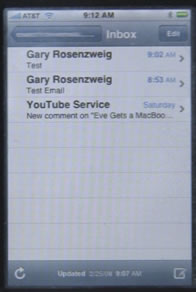
If you are viewing the inbox, you can simply tap on an email to view the email. You can also swipe left to right to bring up a delete button. Or, to delete email you can tap the Edit button at the upper right and you will get red buttons to the left of each email. Tap those to bring up a Delete button.
When you view an email, you will see the From and To fields at the top of the screen, and the message below. You will also see any additional recipients, such as people that are CC’ed. You can hide the recipients by tapping the word “Hide” at the upper right.
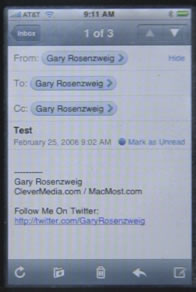
At the top of the screen are buttons that take you back to the inbox, and arrows that let you page through all of the messages in your inbox.
While looking at a message, you will also see any attachments. The iPhone can actually open and display a lot of different attachment types, such as PDF (Adobe Acrobat), Word, Excel and many image file types. It can also play many sound and video file attachment.
At the bottom of the message, you can see buttons that perform various functions. The first button, a circle/arrow, will retrieve more email from the server. The second button, a folder with a down arrow, will allow you to move the message out of the inbox to another folder. The trash can lets you delete the message. The arrow pointing left will let you Reply, Reply to all of the recipients, or Forward the message. The last button, a pencil with a box, lets you start composing a new message.
Moving the message to another folder won’t work unless the account on the server is set up with multiple folders. Most POP accounts won’t have anything except Inbox, Sent and Trash. But Web-based email like Yahoo and Gmail give you the ability to create other folders.
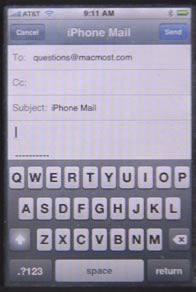
When you start composing a new message, you would usually first enter the recipients email address, or use the + button to add one from your Contacts. You can skip the Cc line unless you want to send a copy of the email to someone else as well. Then you can enter a subject.
Finally, enter a message. Your default signature is automatically included in the message.

Is there a way to search for a certain email?
click your 'Home' button once to bring up you iphone 'search'
Marne: No search function on the iPhone email program.
I just switched from a blackberry and I find this a major drawback.
Is it possible to delete a folder in my inbox on my iphone (yahoo email) and how
Thanks
J.C.: Probably not. You'll need to do it by logging into Yahoo with a Web browser, probably.
Is there a way to lock the email app icon rather than puttin a passcode in?
Not that I know of. Using a passcode would be the best way for simple protection.
My mail interface has somehow removed the top-row buttons for navigation. That is, i can't select to get back to my inbox, scroll between messages or see how many messages i have. It just disappeared! How can i get it back?
Never seen that before. It doesn't even come back when you leave the app and return? You might need to do a backup and restore. But I'd take it in to the Apple store first (after doing a backup) to see if they know how to fix it.
Previously owned a blackberry; iPhone's email downloads only when I tap mail app, then I wait...BB had email waiting for me! What's the fix?
Check your Mail settings. You can set how often it should fetch mail.
Did that and have it set for auto download every 15 mins. It still checks mail when I open the app only, not on its own so it'll be waiting for me. It's not as seamless as a BB
OK. Look in the Mail prefs. On the first screen you should see your Accounts first, then a "Fetch New Data" setting. Tap on that. Then even if it says "Every 15 minutes" still go down to Advanced and tap that. Then see what the setting for the account is. Make sure it is "Fetch."
I am receiving emails which should have embedded pictures but I am just receiving either empty picture frames with a question mark in the middle or a mime_attachment, how do I get the image back?
It depends on how the images are embedded. I'll bet they aren't embedded at all if you are getting empty picture frames. They are probably HTML-formatted emails with links to images on the Web.
My mail doesnt work. just sits there connecting and never connects. Another flaw in the Iphone. My settings are correct as they are verified etc. useless.
Have you tried calling support from your ISP (whomever supplies your email account). I'm sure if there is a trick to getting your ISP's email to work with the iPhone, they know about it.
If that doesn't work, I'd go to the Genius Bar at your nearest Apple Store for help.
Sent and trash folders not displaying. How do I set them up? Also email is saying 1 unread yet none have blue dot.
It depends on how your ISP's email system and Mail interact. IMAP works different than POP, etc. You may need to contact your ISP and work with them to get it configured correctly.
please explain further about the blue dot not appearing when I have an unread email. My boyfriend thinks I read his emails from his iPhone and I didn't even touch his phone. What could cause this?
Well, if you are using IMAP, and you read the email on another device (phone, computer, whatever) then it will show up as "read" on all devices.
how do you delete several emails at once without having to touch each one individually? example: i've already read them on my imac then i have to delete them off my iphone - one at a time, touch-touch-touch. ? thanks
The quickest way is to tap the Edit button, and then touch each one you want deleted. But yes, you have to touch each one -- otherwise how will the app know which ones to delete?
But if you have already read them on your iMac (and moved or deleted), then you shouldn't have to do it again on your iPhone. That is, if you have a modern email system (IMAP, MobileMe, Gmail, Exchange, etc). All of these would keep your mail app and Mail application on your Mac in sync because the mail is really on the server. Consider switching to one of these -- it might be as easy as going into your ISP's email settings and switching from POP to IMAP with your current account. Contract your ISP's support for help.
I accidentally deleted the iPhone mail app. Where can I download it back? Which word should I search for? :(
It should be impossible to delete the Mail app. It is a default app, so it can't be deleted. Are you sure you didn't just move it into an App Folder or move it to another home screen where you haven't checked for it?
If it really is gone, you have to restore the iOS using iTunes. Maybe visit the Genius Bar if you are unsure.
How do I set up folders in my mail program?
In Apple Mail? Just press the + button at the bottom left corner.
I had setup my email account and able to receive email. But some of the emails is empty with remark "This message has not been downloaded from the server." I tried to reload the mail, but it is still the same. How to solve this issue?
That is just a connection problem. The email hasn't finished downloading yet.
I signed into my yahoo mail account using the mail app, but now I can't get back to the main mail screen to sign into a different account. How do I get back?
Do you want to add a new account, or just view the inbox of an account you already have set up. For the first, you do that in the Settings app, not the Mail app. For the second, you tap the "back" buttons at the very top of the screen.
I'll try the settings, see if that works. The funny part is, there isn't a back button anywhere on the screen.
What, exactly, does the top of your screen look like?
What if you lose your iPhone, can the person who foun dit use your email account even if you disabled the SIM? Can he place another SIM card and use your email account?
That's why you should put a passcode on your phone. And, in addition, change your email passwords (and all password for all of your accounts) immediately as soon as something happens like losing your iPhone.
The iphone mail app randomly deletes emails from my yahoo mail. this is incredibly annoying - an email is visible, you go to open it, and it just vanishes. It then disappears from the inbox or other folder (often this seems to happen in custom folders), and cannot be found anywhere - i have searched the trash folder, also gone on to my mail account via pc, but the emails are just gone.
This mail app can't be trusted.
In my view this is a very serious bug.
Are you also accessing the same email account on another device? It could be the other device "reading" the email and then it is removed from the server.
So I was receiving email just fine and my son got ahold of my phone and accidentally deleted my mail app. And I have no idea how to get it back!! Please help! Thanks!!!
He most likely didn't delete it (not easy to do) but simply moved it into an app folder. What happens when you search for it? Check in all your app folders. But you can always go to Settings, General, Reset, Reset Home Screen Layout.
Hey. I'm using the Mail app to check gmail. (I have iPhone 4S, ios5) but I'm having troubles with attachments. Sometimes they don't open. When I tap to download, icon shows the spinning wheel then comes back to original state as if it didnt download) So I cannot view photos or PDF. Doesn't happen all the times but annoying when it does! I have to forward the email to myself (with attachments) to be able to view them. Have you encounter this bug with ios5 ? Still no alternative to apple's Mail App?
There is an alternative. Google released an official Gmail app some time ago. Try it.
I tried but it doesn't pre-load the attachments as Mail does. I emailed google team about more suggestions to improve the app.
Regarding my attachment issue described above, did you encounter it as well?
No, I've never heard of that problem. Perhaps try switching how you use Gmail -- you can use it as POP, IMAP, or as a "Gmail" account when you set it up on the iPhone. Gmail is best, but IMAP works too. Don't use POP.
I am finding that, on the whole, emails are displayed on either my iphone or on my PC. It rarely happens that the same mail appears on both screens. This, needless to say, is a nuisance. Why is it happening and what can be done to rectify it, please?
You probably are using old-fashioned POP email on your server. This means that when one device gets the email, it removes it from the server. Then the other device doesn't see it. Switch to IMAP email if you can. Your server probably already supports it.
Just got an iPhone. Set up my mail account. Shows I have 3 msgs. How do I get to the inbox? All I get is 'Welcome to Mail'
Sounds like you are looking at a message. Use the button on the top of the screen to go back to the list of messages.
On an Iphone3G3, the mail app has ceased functioning...The App opens then suddenly closes. i checked settings, and the only change was that the name field had lost it,'s settings, reverted to appleseed for 2 of the 3 accounts.
can this app be unistalled, and downloaded again.
Try the normal stuff: restart your iPhone. If that doesn't work then you may need to do a backup + restore.
Another option to try is to go into settings, remove your email accounts. Then try it. Then add you email accounts back.
Thanks Gary. Deleted the accounts, no help. Won't have my computer for a month, can I do the backup on a borrowed computer safely.
The iphone is unlocked and jailbroken. Thanks again.
Unlocked and jailbroken? Then all bets are off. Who know what the problem could be....
Has only app store apps.
Is it possible to uninstall mail and download it?
No. It is a built-in app, part of iOS. Backup+restore is the way to re-install it. But if you have unlocked and jailbroken your iPhone then you probably have many more steps in there too.
Thanks Gary. But what is your personal problem with unlocking...I am in 15 countries a year and am able to use 1 phone.
No problem with unlocking. In fact, Apple sells an unlocked iPhone. But jailbreaking has lots of issues. I don't know for sure, but wouldn't be surprised if the trouble you are having now relates to jailbreaking.
It is like taking your car off-road. Nothing wrong with it, but don't be surprised if you break and axle. Know what I mean?
Got it, thanks again.
My boss uses his iphone for business mail. Is there a way to or an app that he can get so that he can send one of our standard "Thank You" letter to clients once he leave their home? In our office we use a template and then have a database that will attach their names and address and then we can e-mail it off or print it out. Is there a way to do this via the iphone right after he has visited with a client?
A template with a database? Sounds like you have some sort of specialty system there -- not sure what you are doing to send those out so I can't really answer the question, Why not check with whomever sets up that system for you?
Where do I find a security setting if I'm using " personal hotspot" from my iPhone? The manual says there is a way to stop the world using my hotspot, but I can't find it.
In the Settings app, go to Personal Hotspot. On that screen you will see "Wi-Fi Password." Change that to whatever you want. As long as you are using a password no one can connect to your iPhone without the password. I don't think there is an option to NOT use a password, so you are always secure.