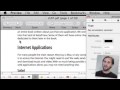
Preview was updated for Snow Leopard to include some powerful annotation features. You can now mark up documents and images with lines, notes, highlights and links.
Comments: 33 Responses to “MacMost Now 295: Using Annotations in Preview”
JKPinPDX
15 years ago
Thanks Gary!
You always tend to find us the little useful things that others forget!
What a great video on the annotations feature in Snow Leopard! I didnt even know about this, and I use Preview all the time!!! I used to use another dedicated program (curio) to make these simple annotations, now we have it build right into the OS!
Thanks Apple and MacMost for bringing this very useful feature to our attention!
Needless to say, I will be buying your book this weekend!
-John Priest
Charles Vanderpool
14 years ago
Of course the one thing I am looking for...information on how to set a link with annotations you only give incomplete information. You show that you need to highlight some text, then hit link type...duh! What about the rest...how do you set the link of the destination and have the thing work?
I'm glad you liked this video. Sorry it wasn't exactly what you wanted. But thanks for the question.
Once you set a link, just select it and bring up the Inspector (Tools, Show Inspector). Then switch to the last tab (the Annotations Inspector). There, you can set the Link Type (in the PDF, or out to a URL) and the destination.
Daniel
14 years ago
PDF annotation in Preview is a great tool!
Yet, I found something that DOESN'T WORK quite well... After setting the annotations on a .pdf (using Snow Leopard's Preview), if I open that .pdf file in Snow Leopard, it works just fine, but if I open the same file on TIGER, or on a PC, the links won't work ok. Every link points to the page following the one I've set. So, if the link is "Go to page 9", it goes to page 10...
Do you know what the problem might be?
Thanks!
Well Tiger would be using an older version of Preview -- one that wouldn't have the same features. I'm surprised the annotations show up at all.
Daniel
14 years ago
Yeah, I do agree about Tiger.
But then I wonder why this happens on a PC (using WindowsXP or Windows7 OS)... PDFs should be "portable", isn't it?
I have no explanation for this.
PDFs are portable, yes. But new features are added to "PDF" all the time. Some are only supported in Adobe's tools for a while before being adopted by others. There's no way that Apple could have known back in 200X when they made Tiger that they would be putting annotations into PDFs later on.
Daniel
14 years ago
... And another thing I think is missing:
In Preview, when you try to restrict the .pdf content from beeing copyied, the only way to do it is "File - Print - PDF - Save as PDF..." and choose "Security Options", but this way THE ANNOTATIONS won't be saved.
The only way to set a password and still keep the annotations is "File - Save As...", but then the .pdf wouldn't be viewed without the password.
Is it a way to KEEP the annotations and, yet, be able to set the security so that ONLY VIEWING and PRINTING of the file would be accesible without the password ???
(...PDFCreator doesn't do this either...)
Would Adobe's Acrobat Pro do it? If that doesn't do it, then nothing would. PDFPen might be another option.
Daniel
14 years ago
Thank you for the answer.
I guess it would help. But I was thinking about a freeware tool.
Anyway, I guess the Mac OSX could do it for free :) It would be a very nice feature.
Scott Karkula
14 years ago
Thank you for the video, very informative! I have one follow up question that maybe someone here can help me with...
Why is it that sometimes I'm annotating notes on a pdf document in Preview, and the annotation begins to appear on all of the pages. For example, at times I'll be adding notes to page 2 of a document and when I scroll to subsequent pages the same note appears in the same location on pages 3 to the end of the document.
Fred
13 years ago
I added some text to a photo in "Preview", emailed it, and now the text seems to be permanently attached to the photo....... Anyway to delete it ?
Is the text an annotation? Just turn switch to annotations again and then select it an delete it.
Mr Anthony Cotton
13 years ago
This is about the fourth time i have visited your site, and again i am not crawling but like the person up above, The video about Preview blew me away. I to like using Preview, and i think it`s better than Adobe`s PDF. You sent me an email and you where confused about weather it was about a particular question,or feedback. I apologise about this,as i said i am self teaching myself,and you had a good right to be confused. Again i must point out this video is easy, even for me to understand. Thanks very much Gary
Mike
12 years ago
Thanks for the video, it is quite useful. I have a problem I am wondering if you have an idea about. When viewing the PDF in Preview, I can actually get the annotation for the drawings to work. However, when doing the simpler things, like highlighting a test in yellow, or crossing through it, I can't get it to work. What I noticed different comparing your video and my Preview, if that when I go to highlight a text, it simply doesn't do it, whereas on yours, it highlighted in the standard blue before you selected the color. Any ideas on why I can't select or highlight text at all? Thanks!
Perhaps the PDF you are looking at has text selection disabled. Or, perhaps you haven't selected the text selection tool in Preview.
David Shepherd
12 years ago
I have known about annotate in Preview but for some reason it does not work on all my pdf's. I have searched for answers but cannot locate anyone who talks about this aspect of Preview. Do you have any thoughts?
Here are the specifics: I cannot highlight text but can only mark the document with an arrow, oval or rectangle. I can use the box feature to copy and paste but is is like taking a screen shot instead of giving me just the text. Any thoughts?
Probably depends on how it was done. You might need to use Adobe Acrobat to change it. But, you can also try printing the document as a PDF to create a second PDF, and then see if you can annotate that. Not sure.
One other thought. Are you sure you are in text edit mode? There are "Select" and "Text" buttons at the top of the window -- make sure you are using the right one.
David
12 years ago
Thanks for the help. I did fiddle with the difference between the two (select of text) and neither work for me. I'll attempt printing and re-scanning. Let's see if that works.
Ann Martinez
12 years ago
Hi Gary,
I wonder if you can help. I am new to Apple Mac, iPhoto and Preview so forgive me if my question has been covered at some point.
I have put together a slideshow of holiday photos and added annotations to some of them with Preview. Now I want to delete some of the text but try as I might I can't find a way of getting rid of it?! Help please.
Thanks
Hard to tell what you might be doing wrong. If you exported or "printed" the PDF at some point, are are using that copy, then the annotations may no longer be annotations, but part of the PDF.
Ann Martinez
12 years ago
I dragged a picture from iPhoto into Preview and went to tools and add text. Then I created a slideshow with all the pictures.
Now I want to change the wording I used so thought I could delete and redo but I've tried everything and can't find a way? Any ideas?
Really hard to guess at what to do without seeing it.
Ann Martinez
12 years ago
I think I must have done something that has 'set it in stone' so to speak! I'll just have to live with it the way it is now. Thanks
Niko
12 years ago
Is there a make annotations read-only for other users? I'd like use the markers to redact a document but they would serve no person if other people can simply delete them.
The annotations should be there, but the other person may not be using the same software needed to view them.
Paul
12 years ago
One issue I can not figure out on Preview mode is that when I hit annotations --> (and choose the) _A_ (black A with a red underline), I can use it to underline something on page 5 but then it always auto scrolls the entire document back to the first page so that I need to scroll down to page 5 again to keep reading. This is very disruptive in terms of efficiency, as some pages need multiple underlinings. Same phenomenon is seen if I try to use the highlight or other annotation tools.
Anyone have this same problem and figure out how to fix it?
Paul
12 years ago
When I annotate a multi-page document (pdf) with the highlighter, it takes me back to the first page of the document (even though I would prefer to stay on, for example, Page 10, in order to keep reading). Any solutions?


Thanks Gary!
You always tend to find us the little useful things that others forget!
What a great video on the annotations feature in Snow Leopard! I didnt even know about this, and I use Preview all the time!!! I used to use another dedicated program (curio) to make these simple annotations, now we have it build right into the OS!
Thanks Apple and MacMost for bringing this very useful feature to our attention!
Needless to say, I will be buying your book this weekend!
-John Priest
Of course the one thing I am looking for...information on how to set a link with annotations you only give incomplete information. You show that you need to highlight some text, then hit link type...duh! What about the rest...how do you set the link of the destination and have the thing work?
I'm glad you liked this video. Sorry it wasn't exactly what you wanted. But thanks for the question.
Once you set a link, just select it and bring up the Inspector (Tools, Show Inspector). Then switch to the last tab (the Annotations Inspector). There, you can set the Link Type (in the PDF, or out to a URL) and the destination.
PDF annotation in Preview is a great tool!
Yet, I found something that DOESN'T WORK quite well... After setting the annotations on a .pdf (using Snow Leopard's Preview), if I open that .pdf file in Snow Leopard, it works just fine, but if I open the same file on TIGER, or on a PC, the links won't work ok. Every link points to the page following the one I've set. So, if the link is "Go to page 9", it goes to page 10...
Do you know what the problem might be?
Thanks!
Well Tiger would be using an older version of Preview -- one that wouldn't have the same features. I'm surprised the annotations show up at all.
Yeah, I do agree about Tiger.
But then I wonder why this happens on a PC (using WindowsXP or Windows7 OS)... PDFs should be "portable", isn't it?
I have no explanation for this.
PDFs are portable, yes. But new features are added to "PDF" all the time. Some are only supported in Adobe's tools for a while before being adopted by others. There's no way that Apple could have known back in 200X when they made Tiger that they would be putting annotations into PDFs later on.
... And another thing I think is missing:
In Preview, when you try to restrict the .pdf content from beeing copyied, the only way to do it is "File - Print - PDF - Save as PDF..." and choose "Security Options", but this way THE ANNOTATIONS won't be saved.
The only way to set a password and still keep the annotations is "File - Save As...", but then the .pdf wouldn't be viewed without the password.
Is it a way to KEEP the annotations and, yet, be able to set the security so that ONLY VIEWING and PRINTING of the file would be accesible without the password ???
(...PDFCreator doesn't do this either...)
Thanks again!
Would Adobe's Acrobat Pro do it? If that doesn't do it, then nothing would. PDFPen might be another option.
Thank you for the answer.
I guess it would help. But I was thinking about a freeware tool.
Anyway, I guess the Mac OSX could do it for free :) It would be a very nice feature.
Thank you for the video, very informative! I have one follow up question that maybe someone here can help me with...
Why is it that sometimes I'm annotating notes on a pdf document in Preview, and the annotation begins to appear on all of the pages. For example, at times I'll be adding notes to page 2 of a document and when I scroll to subsequent pages the same note appears in the same location on pages 3 to the end of the document.
I added some text to a photo in "Preview", emailed it, and now the text seems to be permanently attached to the photo....... Anyway to delete it ?
Is the text an annotation? Just turn switch to annotations again and then select it an delete it.
This is about the fourth time i have visited your site, and again i am not crawling but like the person up above, The video about Preview blew me away. I to like using Preview, and i think it`s better than Adobe`s PDF. You sent me an email and you where confused about weather it was about a particular question,or feedback. I apologise about this,as i said i am self teaching myself,and you had a good right to be confused. Again i must point out this video is easy, even for me to understand. Thanks very much Gary
Thanks for the video, it is quite useful. I have a problem I am wondering if you have an idea about. When viewing the PDF in Preview, I can actually get the annotation for the drawings to work. However, when doing the simpler things, like highlighting a test in yellow, or crossing through it, I can't get it to work. What I noticed different comparing your video and my Preview, if that when I go to highlight a text, it simply doesn't do it, whereas on yours, it highlighted in the standard blue before you selected the color. Any ideas on why I can't select or highlight text at all? Thanks!
Perhaps the PDF you are looking at has text selection disabled. Or, perhaps you haven't selected the text selection tool in Preview.
I have known about annotate in Preview but for some reason it does not work on all my pdf's. I have searched for answers but cannot locate anyone who talks about this aspect of Preview. Do you have any thoughts?
Here are the specifics: I cannot highlight text but can only mark the document with an arrow, oval or rectangle. I can use the box feature to copy and paste but is is like taking a screen shot instead of giving me just the text. Any thoughts?
Perhaps those PDFs were authored in such a way to be "read only." Not sure.
Can that be changed on my end or am I stuck?
Probably depends on how it was done. You might need to use Adobe Acrobat to change it. But, you can also try printing the document as a PDF to create a second PDF, and then see if you can annotate that. Not sure.
One other thought. Are you sure you are in text edit mode? There are "Select" and "Text" buttons at the top of the window -- make sure you are using the right one.
Thanks for the help. I did fiddle with the difference between the two (select of text) and neither work for me. I'll attempt printing and re-scanning. Let's see if that works.
Hi Gary,
I wonder if you can help. I am new to Apple Mac, iPhoto and Preview so forgive me if my question has been covered at some point.
I have put together a slideshow of holiday photos and added annotations to some of them with Preview. Now I want to delete some of the text but try as I might I can't find a way of getting rid of it?! Help please.
Thanks
Hard to tell what you might be doing wrong. If you exported or "printed" the PDF at some point, are are using that copy, then the annotations may no longer be annotations, but part of the PDF.
I dragged a picture from iPhoto into Preview and went to tools and add text. Then I created a slideshow with all the pictures.
Now I want to change the wording I used so thought I could delete and redo but I've tried everything and can't find a way? Any ideas?
Really hard to guess at what to do without seeing it.
I think I must have done something that has 'set it in stone' so to speak! I'll just have to live with it the way it is now. Thanks
Is there a make annotations read-only for other users? I'd like use the markers to redact a document but they would serve no person if other people can simply delete them.
You can simply make the entire document read-only.
How do you email an annotated document?? It keeps emailing without my annotations!
The annotations should be there, but the other person may not be using the same software needed to view them.
One issue I can not figure out on Preview mode is that when I hit annotations --> (and choose the) _A_ (black A with a red underline), I can use it to underline something on page 5 but then it always auto scrolls the entire document back to the first page so that I need to scroll down to page 5 again to keep reading. This is very disruptive in terms of efficiency, as some pages need multiple underlinings. Same phenomenon is seen if I try to use the highlight or other annotation tools.
Anyone have this same problem and figure out how to fix it?
When I annotate a multi-page document (pdf) with the highlighter, it takes me back to the first page of the document (even though I would prefer to stay on, for example, Page 10, in order to keep reading). Any solutions?