To create an iPhone email account, go to the iPhone Settings, tap the Mail item. This will take you to the main Mail preference. Under a list of current accounts, you will also see categories for Message and Sending. Probably best to set those up first.
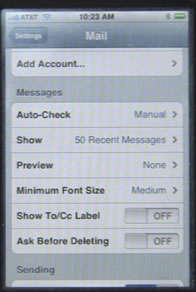
The first setting is for Auto-Check. This is how often mail is checked, even if you don’t access your Mail program. You can set it for Every 15 minutes, Every 30 minutes or Every hour. You can also set it to Manual. When you set it to Manual, email will be checked every time you enter the inbox for the email account in the Mail program.
The Show setting lets you set not only how many messages you see at once, but how many are downloaded from the server. For instance, if you set it to 50 Recent Messages, you will need to tap a “Download More” link at the bottom of the message list to get more than 50.
The Preview setting lets you select how many lines of an email are shown in the message list
The Minimum Font Size setting lets you make the text in messages larger or smaller.
The Show To/Cc Label setting determines whether recipients are shown by default when viewing a message. You can always show or hide this while viewing.
The Ask Before Deleting setting gives you one more chance to cancel deleting an email before it is gone.
There are also some choices under the Sending category.
Always Bcc Myself lets you choose to have a copy of any message you send be sent to yourself as well.
The Always Bcc Myself option is very handy if you want to have a copy of every email you send saved in your Sent folder on your Mac. If you don’t use it, then an email you send from your iPhone won’t exist at all on you computer. But by sending yourself a copy of the message, you can then get it on your Mac and move it to your “Sent” folder there, so you can refer to it later.
The Signature setting lets you enter some text that will appear automatically at the bottom of every email message you compose.
The default account determines which account is used when sending a new message. You can change it while composing.
To create a new email account, tap the “Add Account…” item that is at the bottom of the Accounts category. You will then be given a number of choices: Y! Mail (Yahoo Mail), Gmail (Google Mail), .Mac, AOL, and Other.
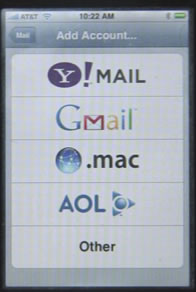
The first four allow you to quickly and easily add email accounts from four of the major Web-based email providers. When you select one of these, all you need to do is your name used in the account, your email address associated with the account, the account password, and a description to display on the iPhone to identify the account.
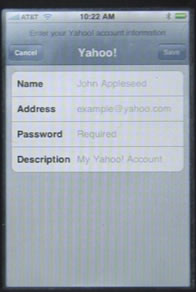
Three of of these services allow you to create free email accounts. Try these links to set them up:
AOL,
Yahoo, and
Gmail.
Selecting Other is how you would go about setting up an email account to any other email service. You get three choices: IMAP, POP, Exchange. Most email accounts would be POP (Post Office Protocol). Some more advanced new servers may offer IMAP (Internet Message Access Protocol). The difference between them is basically that POP email stores email on the server until you retrieve it. IMAP stores and manages email on the server, and you view it and take actions by accessing the server directly. So IMAP email is easier to share between two computers, like a desktop and a laptop, or a computer and a device like the iPhone. With IMAP, you can read, reply and move an email and all devices accessing the account will show these actions. With POP, all of hat takes place on your local computer, so other devices won’t even know the email existed.
When creating a POP or IMAP email account on your iPhone, you will need to enter a lot of information that should be available from your Internet service provider. However, if you already have this account set up on your Mac, you can simply go to Mail on your Mac, and look at the Preferences for that Account. Everything except your password will be visible, and you can simply copy your settings.
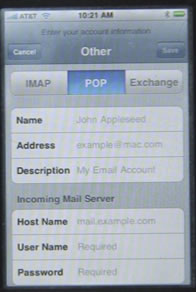
You can also access email using Exchange server. To do this, you must have IMAP access turned on on the Exchange server. Then create an account and enter the information required.
Once you have set up an account, you can edit its settings. An “Advanced” option is at the bottom of these settings and should be set up immediately.
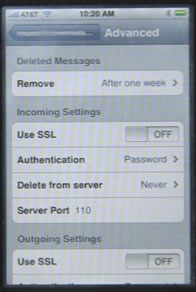
The Remove setting determines how long email remains in your Trash on the iPhone.
The Use SSL setting will require that a secure link be created between your iPhone and the server. The server must support this for it to work.
Authentication allows you to switch from Password to another special type of authentication of your server requires it.
Delete From Server determines if email is removed from the server when the iPhone downloads it. You can choose Never, after Seven Days, and When removed from Inbox.
Delete From Server might be the single most important setting. If you usually get your email on your computer, but only wish to use your iPhone to check your email when you are away from your computer, then you want to set this to “Never.” This will mean that you will get all of your email on your computer, and your iPhone will simply look at copies of the email.
Server Port allows you to set a different server port in case your ISP has an unusual setup.
There are also some Outgoing Settings. You can set Use SSL, AUthentication and Server Port for outgoing mail as well.



Iphone reqest for SMPT when creating iphone e.mail account
I donwt know how to do it
Please advise
Thanks
Shlomo
how can I using email and account email on my iPhone
I think this page answers your question. Do you have a specific problem you are trying to solve?
My emails only go to my iphone. They don't show up on my computer. I read somewhere that I have to change the setting in "Delete from server" but that option doesn't appear in my list. It says IMAP Path Prefix where "delete from server" should be. Why is this???
That option is for POP users, not IMAP users. If you are using IMAP, then it is a whole different way of working. Your emails don't "go" to either your iPhone or your Mac, they are on the server. You can set up both your devices to use IMAP and then share the account between them. Read up more about how IMAP works.
where and how do I read up more and would it not be easier if someone just told us
There is a lot to know. And a lot depends on your email provider, too. If you don't want to know, then just set up your account as IMAP according to your ISP's instructions.
I have frontier and when I set it up it works but I want the mail to stay on the the server until I download it on the pc not the iphone, I just use iphone to check mail to see if I need to take care of something right away, if you can lead me in the right directions I would appreciate it Thanks
sorry former verizon
So your ISP is "frontier?" You should contact them and ask about switching to using IMAP. It is probably as simple as just a few settings to change.
I have frontier as my mail server. My iphone receives emails but I cannot send email. I have talked with both frontier and ATT regarding this issue and no resolve.
Any suggestions?
How did you set up your iphone to send or reply to email from frontier? I can receive email but cannot send from the iphone 4.
I dont know how to remove some of Id s that i used before and i dnt need it anymore.but it comes up every time that i type the first letter in name bar of mail:(((I also delete their names in contact:(
How can i remove pop up show?
Yup, it seems that the almight Apple forgot to give the option to people who are stuck with POP only.
Once again, the all-seeing Apple knows best. LOL!
Not sure what you mean. What option is missing for POP users?
Hey Gary
I really liked to "prompt" option on the Blackberry. I can choose to delete from handheld AND Desktop or just handheld. Is this an option for iPhone using exchange?
Unfortunately, without an Exchange server, I have no way of checking it myself. If you use an Exchange server, then why not look and see?
Hey Ryan, I used to love this option in BB as well. Did you figure this one out?
I have a company email set up though our IT. They say it is not possible but was just trying to google around and see if in fact it is. I have heard it is but not from people who can explain how. Thanks tho!
Did you ever figure out how to do this? I also like the 2 option delete on my BB
Is there a way to set it up in IMAP so that the Sent folder also syncs across the two clients (thunderbird on my laptop and my iPhone) or do I always have to send a copy to myself from both devices?
That's how it should work by default. I'm using gmail IMAP that way and I see Sent messages on both my iPhone and Mac regardless of where I sent them from. IMAP means that all folders should be shared -- actually existing on the server.
Thanks for this page.
I have iPhone 3Gs (model: MC132B, Version 3.1.3 (7E18))).
I want to send emails from my Yahoo account but using a different email address (not my using my "btinternet.com" address).
Have been trying to understand if this is possible but can't work it out.
Would be very grateful if anyone can help with this.
Many thanks
I don't think Yahoo allows this.
Is it possible to use iTunes to sync outlook 2003 local personal folders on an iPhone 3Gs?
thanks
Not sure. There are lots of mentions of syncing Outlook with an iPhone, but as I'm not an Outlook user I don't know specifically what would happen.
I managed to set up my main email account on my iPhone, but then when I tried to access that account on my PC it kept rejecting my password to logon to the server. I know I'm using the right password because I've deleted and set up the account twice to make sure and I was still able to access the account on my iPhone with the same password. At the moment I've made a new email account just to use for my iPhone but ideally I'd like to be able to use the one account. Can anyone help?
Your password may be right, but what about your id? they both need to be right. check the email account documentation. sometimes if your email account is myname@example.com, the id is exactly that. sometimes it is just myname, sometimes it is a + instead of an @, sometimes a %. I've even seen things like myname@example.com.server.net, etc. also make sure you choose between pop and imap correctly.
Thanks Gary, have checked all that and everything is correct. Interestingly I logged onto the account on the PC first thing this morning and it was fine, then after I used it on my iPhone and went back to check it on the PC, I had the error again. It seems to be more a problem with the iPhone still using that account even after I've closed the email on my iPhone and I get this message
"There was a problem logging onto your mail server. Your Password was rejected. Account: 'mail.tpg.com.au', Server: 'mail.tpg.com.au', Protocol: POP3, Server Response: '-ERR [IN-USE] Unable to lock maildrop: Mailbox is locked by POP server', Port: 110, Secure(SSL): No, Server Error: 0x800CCC90, Error Number: 0x800CCC92"
I will experiment more with how long I have to wait between using the iPhone and being able to use the PC again. At this stage it looks like it's only about a 5 minute wait. Thanks for your help.
I am also having this prolem; did you ever get it fixed? I am getting no mail at all on my PC. Any help would be appreciated.
Mine was just a matter of waiting about 5 minutes between checking on the PC to checking on the iPhone. Obviously this is not normally a problem as I'd have no reason to check between one or the other so quickly...it was just while I was setting it up and kept logging from one to the other to check things were sending and receiving OK that I even noticed it. The tip off for me was the "[IN USE]" comment in the error message. If you're not getting that message it must be a different problem, sorry.
I run my own mail server (MDaemon) and also suffered the lock issue with my new iPad.
When you access a pop account, RFC dictates it should be locked untill the access finishes.
For the most part this is so quick I can't even see the lock files appear on the mail server.
For my iPad the lock appears and will not go away until I shut down the iPad (though I didn't try waiting for more than a few minutes.
I don't know why apple mail keeps that lock open. I tested all of my config many times.
In the end I created an ipad@somedomain.com mailbox, (copy) forwarded all mail from realbox@somedomain.com and the ipad connects to the ipad account so the lock it creates does not interfer with the realbox account.
I will keep looking for a solution as I consider what I did a band aid fix.
I am getting this same error message...and after waiting about 5 minutes (like Deb mentioned above) there is no problem with the send/receive function on my PC. Just wondering if there is any way around this as I am often in and out of the office throughout the day and therefore using both my iPhone and PC throughout the day.
I'm having an issue with my iPhone 3GS checking my email account. I get an error on my phone saying "the connection to the server failed".
This email account works fine on my mac and worked for 2 days on my iPhone but then for some reason the iPhone quit getting mail. I double checked that all the settings were the same as the computer and all looks good. Any ideas? Thanks in advance for your time.
Damial
So it definitely worked for a while and the stopped working? That's odd. Perhaps the server has blocked it for some reason. Are you on the same wifi network as your Mac? Did you try deleting the recreating the account?
Gary,
It definitely worked for a couple of days and then stopped. I am on the same wifi network but when I leave the house I go off the wifi and to the "edge" network or "3G" (depending on if I'm surfing the web or not)
I have deleted and recreated the account twice.
Damial
What type of email accept is it? Perhaps it doesn't like it when you access it from certain ip addresses. You could be getting an error message that you never see.
If it is a corporate account, perhaps visit IT and see if they get an error in the logs when you try to get email.
Otherwise, a visit to an expert or the Genius Bar might be in order.
It's not a corporate account it is my personal account. I'll see if I can find someone that can look into this a little further. Thanks for your help.
But is it your server (yourdomain.com), or is it an ISP (Verizon, Qwest, AT&T, Comacst, Roadrunner, etc), or is it a special provider (Gmail, Yahoo, Hotmail, MSN, AOL, MobileMe).
Yes it is my domain...
Then there might be a way for you to check the email access logs on the server. That might give you a clue as to what is happening as there may be an error message in those logs that describes the attempted access.
Can i have more than one email account on my iphone? (hotmail and gmail)
Yes.
I have been using my iphone email for 2 years already, but after a recent password change on my email I can no longer access my mail on the phone.
I have deleted the account and tried to reload, but the error msg received now say's "Cannot Get Mail" The user namd or password for imap.apple.mail.yahoo.com is incorrect. I know I have enter the correct information. Any help or suggestion is appreciated.
Check more than just your password. For instance, you typed imap.apple.mail.yahoo.com as your server. Is that right? I didn't think Yahoo did IMAP, and if they do, then do they have a special server for apple? So check that server name. Check your ID. Check everything. It all comes down to some setting that isn't matching what your email provider wants.
Hi, I'm trying to set up my new BT email address on the iphone. I've successfully set up my sky email address. I've added all the pop info but each time I go into mail it says "Cannot Get Mail - The connection to the server pop3.btconnect.com failed. My sister has successfully set up 3 email accounts on her iphone, one of them being a bt address, although she can see her mail she keeps getting the same error message. can you help??????
It must either be a setting that isn't quite right, or a problem on the server end. There's nothing I can do. Call BT support -- they must be used to iPhone users by now.
Hi I just got my iphone and use an AOL account on my laptop. I can now access my emails on my iphone but I am not receiving new emails to my laptop. Seems that I am only getting them on my iphone - rang the apple support line and was told to go to AOL and tick the email option where it says "leave a copy on the server" - have tried for about 2 hours to find this option in AOL but to no avail.
Can anyone help me find the account option in AOL to check this box. Thanks
I don't have an AOL account to use to test on. But that option should be on your iPhone, not in AOL. It should be In your Settings, under mail, under that account. But since I don't have an aol account to test, I can't tell you what is there.
I have a new iPhone 4 and am having no luck linking Cox Communications email to the phone. I get a message that it is the incoming POP server from Cox that is not linking. Apple help could not solve it nor could At&t. Cox confirms the address is correct: pop.east.cox.net. Has anyone else had this connection issue? Solutions? Thanks
It is a matter of making sure that all the details are right: ID, password, ports, etc. For instance, your ID could be example@cox.net, just like your email address, or it could be example+cox.net, or example%cox.net, etc. I've seen all sorts of weird variations on how to do it. Things like that.
Thanks Gary, an update, I reported the issue to Apple. They could not fix the problem and referred me back to AT&T. They couldn't fix it either. A week went by and the problem mysteriously fixed itself. Don't know how but I can now receive my email from Cox. Thanks again.
i am trying to connect my sky email account to my iphone but when it tries to verify the account it says that either my username or password are incorrect. even though i know that they are right. any ideas? thanks
Could be any of the settings: ports, protocol type (IMAP or POP). I assume "sky" is your ISP? Try contacting them. I'm sure they are used to helping out iPhone users by now.
How do I get my iphone e-mails to delete along with my e-mails on my computer. After reading above, it seems that I need to change my POP to IMAP. How do I do that?
It depends on your email service provider.Look in their documentation for help converting to IMAP.
I want link 2 email accounts to my iphone4. Is that possible.
One my personal and one my official. Can I do that?
Absolutely. Just add another account in the Settings app on your iPhone. You can add as many as you want (or at least a lot of them).
Hello,
I swear that when I had the 3GS that I was able to delete an email from my computer and it would delete it from my IPhone. Now it seems with the iPhone 4 that doesn't happen. My inbox is empty on my computer, but my iPhone is still loade up. Any suggestions please?
Perhaps you get things up differently. Using IMAP is the best way to do this. Are you? If you are using POP, then it is tougher to handle one email account on two devices.
Thank you for your response. I am using imap, set up through the phones easy setup buttons. By theory, shouldn't the emails on my phone delete once I delete them off my computer? Also, my one pop3 account that I do have does it well, just not Yahoo and Gmail.
Right. If you are using IMAP then your email is really on your server, and your iPhone and computer are both viewing them from the server (though local caching takes place). When you delete an email on one, it should delete on the other. But there may be a delay (seconds, or a minute).
Of course, some service like Gmail allow you to "delete" email which really means archiving it. So if you are viewing your "All Mail" folder, then deleting doesn't appear to do anything. If you are viewing your Inbox folder, then it seems to work as you would expect.
Hi Gary. When I click on the send/receive icon on my PC occassionally I receive the error message "Your mailbox is temporarily unavailable because another email message is being delivered to it or another mail application is accessing it." The error goes away after a few minutes and my PC can send/receive as it normally does, but I am confused as to why I only receive the error some of the time. Thoughts? I thought that I could "sync" my iPhone and my PC without any interference type issues?
I've never seen that message and it may be specific to your ISP. Your PC may get it too, but may not be showing it to you when it happens. Hard to say.
I have several emails that will not delete. I use POP mail through Yahoo and only recently have an issue with what seems to be one particular email/site that will not delete. I have the server setting to never and have deleted the emails from the main mailbox. Any ideas as to what or how to delete these? Thanks
POP email through Yahoo might be an example of the worst way to do email right now. Yahoo had such a lead on email over the competition and they have really blown it over the years.
The only thing I can think of is to log in to Yahoo mail's Web interface and delete the messages from there. Then, delete the account from your iPhone and add it back again.
But why use POP to connect to your Yahoo email account on the iPhone? Why not use the custom "Yahoo" account type when setting up email. That should work much better.
Thanks Gary. I'm using POP because we 'convert' it to outlook right now. At some point in the hopefully not to distant future, we will be using exchange and that will resolve some of these issues. Thanks for the response. I had already deleted these from the web interface email account and it's about 10 emails that will just not delete. I will probably have to try deleting the account on the iphone and re-setting it up again.
Have an iPhone 3GS with two mail accounts: a gmail and a road runner. Both have been working great, but had to restore phone recently and now email doesn't sync when deleted. I used to be able to delete an email from either my phone or computer and it would be deleted from server, gone forever and not have to be dealt with again. Now, that doesn't work. I thought my settings must have been restored to the default when my phone was restored, so I went in and checked. Still have "delete from server - when removed from inbox", but it's not deleting. So, I'm having to delete each email on both my phone and my computer and the inefficiency of it is driving me crazy. Please remind me how to fix this. Thanks!
I would simply remove the account and set it up again from scratch.
Hi. I use a desktop pc and an iPhone 3GS. I use 2 AOL email accounts (primary) and 2 Yahoo email accounts (rarely used).
Setup on iPhone is easy. AOL email mostly works as expected, BUT... when I open an unread email on my pc, that message SOMETIMES does not appear on my phone for use later. Same happens with some emails read on iPhone (they don't appear in AOL on my pc for later reference. So, if I try to follow a sequence of emails from either device, I don't have the whole picture. (I have SOME, but not ALL... so I can't trust either.)
Same is true of emails SENT from the pc (not available on iPhone) and SENT from the iPhone (not available on the pc).
I can't seem to find anything on this problems online. If the emails reside on a server and both the pc and iPhone are only looking at the server, then how can the picture not be complete?
I've tried "loading more" emails on teh iPhone and also tired deleting the account and setting it up again (thereby pulling all messages from server.) No change.
Any suggestions?
Sounds like a bug in AOL. With a normal POP email account I would expect exactly this behavior. With an IMAP account, I would expect this never to happen. But I don't know if AOL qualifies as a POP or IMAP account -- or something unique. My only suggestion would be to move away from AOL if you need to "trust" your email. That is probably a good idea even outside of this problem.
We have 5 email accounts at our office, all are downloaded POP3 to outlook (don't ask why we aren't using imap - that is a fight I am still working on). The 5 of us also have mobile devices with POP3 email accounts set up on them - 4 android devices and my iphone. For those who have android devices, when they move an email from their inbox (delete or move to another folder) the message "disappears" (is deleted) from their phone. This is a nice feature (in the absence of imap) because "read" eamils in outlook don't bog up their phones. This does not work on the iphone. Messages I receive stay there regardless of what I do on outlook. I have to manually read and delete all messages to remove them from the phone. I have talked to our IT guy and all he can tell me is that he is only familiar with the android phones and they work as he expects. Any idea what I can do to get this functionality on my iphone?
Not sure what Android is doing to accomplish this. It shouldn't really "know" whether the message has been moved from the inbox or not. So I suspect that there is more than POP3 going on -- some sort of messaging between outlook and the email account that is then relayed to the phone. But I'm just guessing.
Can we rename the name of the email account?
I was able to name one email account as WORK & other as PERSONAL, but accidently my exchange account is set as EXCHANGE. I want to change it to OFFICE. Can I rename it now?
I don't know much about Exchange server settings -- but I assume you can change it there.
You may have figured it out by now but go to Settings; Mail, Contacts, Calendars; click on the account that says exchange; at the top where it says account, click on that; change it ready what you want in description.
How many different email accounts can you set up on the iphone 4? Is there a maximum?
I don't think there is a maximum. Might be, but I've never heard it mentioned.
Hi Gary, recently i have error in sending email out from my pop email account (iphone 4). i used to be able to send and received email. currently, i'm only able to receive but not sending emails. it kept prompting me with the message " a copy has been placed in your outbox. the receiptant xxx@xxx.com was rejected by the server". i tried sending an email with yahoo account and it works perfectly fine. only this pop account have problem. do u know any reason why? thank q in advance
Impossible for me to tell why. Check and double-check the settings for that account, particularly the SMTP settings.
I am having continued issues with my email messages pushing through to my iPhone 3G. I rechecked all of my settings. They are set to push every 15 minutes. First thing in the morning, my inbox mirrors my computer's inbox. Throughout the day, however, I cannot rely upon my iPhone at all. It is extremely frustrating because I know there are messages and when I get home, I find 30 messages on my computer and none on my iPhone. Any ideas? Thanks much.
Switch to IMAP. If you are using POP, then whichever machine gets to the email first will download it. Unless both are set to leave messages on the server, they will go to one or the other. But using IMAP is completely different. Both will stay in sync with the server.
I just received my IPhone 4. When I delete an email from the Iphone, it also deletes it from my PC. How do I prevent it from deleting on my PC? My old Blackberry gave me the option. I have aol. I was told by Verizon to find on aol.com the option to "Leave a copy of the email on the server" but I cannot locate it. Help!
Right you should look for an option like that in your iPhone email settings. Could be in AOL's settings too. I don't use AOL so no way for me to check.
I'm trying to setup an iPhone for a user in our company. I can receive email on the phone, but I can not send from it. The incoming/outgoing mail server names are the same. Using IMAP for incoming and SMTP for outgoing. Any ideas why I can't send/reply email from the iPhone?
It must be that your settings for SMTP aren't quite right. Check, double check.
I'm running IMAP on the iphone and POP at home. (I'm old-school; I like to save my email on my own box.) It works fine, almost. I like to check email on the road and I especially like to delete spam. (I get a lot, and I don't want to overflow my ISP's quota.) But there doesn't seem to be a way to delete the spam on the server. I delete it on the iphone and even purge the "Trash" folder, but it's still in the POP inbox. (The ISP has a webmail interface that does allow me to purge Trash, but it's a mobile-unfriendly interface and I'd prefer doing it through one program.)
Things get really tough if you do IMAP on one computer and POP on the other. You will always have issues like this. I would recommend using all IMAP and then archive your email every once in a while if that is important.
how do i set up my iphone and hotmail account so that when i delete an email from my iphone it deletes it from my hotmail account?
Not sure. Does hotmail offer the option to set up as an "IMAP" account? If so, that's the way to do it.
I have the Iphone 3gs,and I want to know how and if I can get AOL componets on it,like chatting and email,instant messages.If so,how do I do it?
To get AOL email, just go into Settings, Mail and then add a new account. Select AOL to add an email account. For other services, go to the App Store and search to see what apps are available that use those services.
I have a question about pc/iphone email. Is it possible to have my home computer download my mail via windows live mail and my phone only to receive any emails when they havent been downloaded onto my pc? At the moment I have receiving two lots of mail, every email goes to my home pc and to my iphone. I am just wanting my phone to access new emails that come in when I am not at home, but then when I turn on my home PC, it will then retrieve the emails that I receieved when I was out (I hope this makes sense I am not very techy) Any help would be greatly appreciated.
Are you using POP email? If so, switch to IMAP and your two devices will be in sync. You would be able to get email on your iPhone, then archive it. Then you wouldn't see them in the inbox on your PC.
Is there a possibility where I could still get mail on my iphone when out....and delete them off my phone...but still get them on my PC when I get home? (this would be my preference is it is possible)
Why would you want to do that? With a modern email system (IMAP) you would see the same thing on your phone and PC. So if you want to read it later, just leave it in your inbox. Then archive it on your PC and it will also archive on the iPhone. So there is never any confusion. The email is in the same "place" everywhere.
ohhh that sounds good! Thankyou. Totally makes sense.
Appreciate your assistance Gary!!!!
Aaah Dude, no need to photograph your iphone to take a screen shot!
In February, 2008 there was. Check the date on this article.
I just switched from Blackberry to iPhone 4. So far so good...my only qualm right now is that I needed the ability to be able to revert back to an old email on my phone AFTER it had been downloaded to my pst in Outlook. As it stands now, once I open my outlook all mail is pulled into my local PST and all mail on the iPhone disappears, obviously because there is no mail on the exchange server anymore. However on blackberry, there was always a resident copy of that email that one could refer to at a later time. Is this an option somewhere on the iPhone exchange setup or Outlook? i have looked everywhere and all I can find is people telling me to switch my default folder to my exchange email box, not my local pst.
any help would be great!
Steve
Hi Gary,
I have a Verizon iPhone 4. Do you know if I can set up more than one exchange account on my phone?
Also, the way you explained IMAP mail in the article seemed very similar to the email I have at work. I have my personal gmail account set up as exchange on my iPhone. I want to get company emails on my phone, too, but I'm told I have to use exchange. can you clarify this for me? Thank you
I don't use Exchange so I haven't paid much attention. But I believe that having multiple exchange accounts was a new feature of iOS 4. If you have a Verizon iPhone, then you must have iOS 4.
If you have an IMAP account, then why not set it up as IMAP? Why try to do it as Exchange? Or, in your case, if you have a Gmail account, then just set it up as Gmail, not Exchange or IMAP.
Hi,
When setting up my Yahoo account on my iPhone, I do everything and when I hit done - it says Server Unavailable - Please try again later. I got this message last night and tried it again today with the same message. Anyone have any advice? I already turned on the "Other" SMPT with the same message. Thanks in advance!
Yahoo has been implementing changes to their email system, perhaps you really do need to just "try again later." Another suggestion is to switch away from Yahoo. I usually don't comment one way or another about such things, but Yahoo email has proven to be a problem for so many people I know that I have to throw that out there.
First of all, thanks for this post, because I think it will help once I figure out what to do regarding my comment. When I hit "Other" as you indicate, I never have an option to choose "IMAP" or "POP" or "Exchange" as you indicate. I have an i-Phone 4 32G. My work and personal accounts transferred to my new phone as soon as I synced it but the account from my second job, which uses GoDaddy wouldn't do so. Never would "verify" the account, so I couldn't access email.
This post is from 2008. Using Other is still the way to go, but it figures out some things but itself. Try it.
I changed my Yahoo e-mail password about two weeks ago (if not longer) and starting last night I began getting an error message on my iPhone 3GS when I tried to access my Yahoo e-mails (I think the error msg was "Cannot get mail"). I checked the account settings and saw that the old password was still there. I changed it to the new password but when it tries to verify the new password I get the error msg "server not available." However, if I enter an incorrect password I always get the error msg "The user name or password for '*******@yahoo.com' is incorrect," which tells me the server IS available and can see the correct password. I checked my e-mail address and that was correct. I have had no problem accessing my Yahoo e-mail from my home computer or work computer since this problem started. Any suggestions would be appreciated.
Don't assume that an error message "password is incorrect" means exactly that. I've seen that show up plenty of times when an email server was down. It is kind of the go-to error message. Email servers are horrible with error messages like that.
Have you tried deleting the account and re-creating it. Also see my rant in reply to Ray above about Yahoo email.
I did see that, and am thinking maybe I should just move everything over to my Gmail account. It doesn't appear Yahoo's server is down, as I could access my Yahoo account from my laptop when I got home last night and again throughout the day today. I didn't try deleting the account yet as it didn't appear to have resolved the issue for others, but will keep that in mind.
Update: I finally gave up and deleted my Yahoo account from my phone and have been trying to add it back ever since. As mentioned above, if I use an incorrect password it tells me the password is incorrect, but if I use the correct password (which I use to access my Yahoo account from my home and work computers) I get the same message saying "server not available." Meanwhile my Yahoo inbox has increased from approximately 9,000 e-mails to over 20,000 e-mails, all through duplication of e-mails, sometimes as many as eight duplicates. Radio silence from Yahoo on both of these issues, but I remember the duplication problem occurring a while back and Yahoo finally owning up to the problem and removing the duplicate e-mails.
Same problem trying to set up yahoo mail on a new replacement IPad (server unavailable). Works fine on devices where it was already set up (other iPad and iPhone). Tried everything and I am pretty technical astute. I noticed I had no problem setting up Yahoo Mail via Yahoo Mobile and then adding it to my home screen. I think Yahoo is playing games with us to make sure traffic goes thru Yahoo Mail vs Apple Mail. Just like Apple removing the Amazon Kindle Store button from the latest IPad App for Kindel.
Hey, my Outlook on my laptop is my primary account. Our mail server is hosted on gmail. The pop setting on my blackberry work perfectly in that all mails always show up on my Outlook, even if they have downloaded on my bb. However with my ipad2 that is not the case. I've followed the POP set up on the ipad2 correctly but some mails which download on my ipad2, don't show up on my Outlook on my laptop and thats a huge problem for me as I need all mails on my Outlook. Any idea why some of the mails that appear on my ipad dont show on my Outlook?
POP will do this. You probably have your Outlook set to download and remove the emails, so that's why some don't' appear on your iPhone. Best to use IMAP if you are going to have more than one device access your email. And if you can't then exact settings for each device are needed or this will happen.
what does server mean!???
An email server is the machine or service that gets and sends your email. You connect to it to send email, and connect again to receive email. This could be a corporate server at work, or a web host (your own domain) at home. Or, like most people, you could be using a large server like Yahoo, Gmail, AOL, MobileMe, etc.
I just upgraded to IPhone4S and when trying to send email from my frontier account it comes back and says "was rejected by server because it does not allow relaying". I had this same account on my Iphone3 and was able to send and receive emails with no problem. I also have this same email on my work computer through Outlook. Any suggestions??
So I just updated my phone tried to get my email set up but it keeps telling me server not available what can I do to fix this?
Check and re-check all of your settings. If it is a cloud account (Gmail, IMAP, Exchange, etc) then maybe try removing it and adding it back.
it is yahoo and i have deleted and done everything possible that I can see on the phone. I already went to apple for another issue with the new update and I dont want to have to go back if possible.
Are you setting it up as the special "Yahoo" type?
I downloaded the new 5 version soft ware on my iPhone and I am very disappointed with all the emails I have in my inbox. I like to have my inbox cleaned out and keep only the emailsl I choose. I am now made to have at the least 50 emails in my inbox. If I delete 5, 5 more come back. I do not like the feature.
iOS 5 shouldn't change anything that would do that. Perhaps you are looking at an "all mail" mailbox, or all of your mail, instead of your "inbox"
a copy has been placed in your outbox
the recipient xxxxxx@hotmail.com was rejected by the server because it
does not allow relaying .
This happens sometimes if you SMTP server account info is wrong or missing in Settings, Mail.
Weird thing happening with brand new iPhone 4S. When I download new emails to the inbox, all the current emails in the inbox disappear. I can find them nowhere. Is there a setting somewhere I've got wrong? Thanks for any help you can offer.
Hard to say. Check all of your settings and check again. Could be a setting on your email server too.
I bought an iPhone 4 S today. I spent 3 hours with the sales rep trying to set up the e-mail. "yahoo server unavailable" sign comes. My son bought the exact iPhone and his yahoo e-mail set up works. What is wrong with my account?
Could be a temporary problem. Could be that you might be getting the ID and password wrong (try logging in on the Web site to check). Or, just try again tomorrow.
When adding a (other) account and i get to the new account page where it shows IMAP or POP what do i fill out on my incoming and outgoing mail server.
Depends. You need to consult the documentation or whatever you have for your email account. Or, your IT guy if it is a company account.
Hi. I just bought an iphone 4s and tried to set up my pop email account but it won't verify it. I keep getting a message"cannot connect using SSL. Would you like to try without SSL?" Tried with and without ssl but still nothing. Help please!
Contact your ISP or company IT guy and get all the settings you need to complete the setup. Or, better still, see if you can use IMAP instead with that account (much better).
I have the same problem as Rick Collins and have contacted email host. I double checked all account settings but it still does not show a send box or draft box on my mail box and I get the SSL message. I can download emails but not send any. The email host suggested changing the port # for outgoing mail or using the ISP server (not good idea as they dont include correct email address). Do you have any more suggestions, other than trying to change to IMAP
Hi I just bought iPhone 4s and try to set up my company mail under IMAP but it cannot verify server identify " preferences cannot verify the identity of 'mail.****.com". But previously i used the same contains in I phone 4 i can access. And now can't. Please advice me. Thanks.
I'd consult with your company IT department and get the settings you need. The may have changed, or there might be some small detail you are forgetting.
hi all,
i have a problem as following:
iPhone 3Gs 32GB emails set up for Microsoft Exchange Mails (my company)
Set up was successful and works all fine!
However in the message body no text appears everything else works fine!
When I try to type no text... when I open an email from inbox same results no text!
Please help is it encoding issue or?
Hard to troubleshoot something like that without getting first-hand help. Have your IT department take a look. Or, the Genius Bar.
Hi, I have 2 questions regarding the set up of my cox em on new iPhone 4S:
1. acct is set up however; in the settings->mail, contacts, calendar -> Xmail acct -> advanced -> LAST BLOCK = S/MIME. What is S/MIME? Should it be On or Off??
2. If an email is delivered to my iPhone (the newly set up Xmail account) or even if I do a test from the iPhone to my .cox account -- the EM is NOT being delivered to the em account my laptop. Only to my iPhone. ... and vice versa ... if I am at my laptop, in em, I get em's there that do not show up on my iPhone. Do I have a setting issue?
Appreciate any assistance!! Thx
S/MIME is a way to send secure email. Up to you whether you want it on or off. If you don't know what it is, leave it at the default.
Sounds like you are using old-fashioned POP email. Once it is removed from the server by either device, it isn't there for the other device to get. See about switching to IMAP (may be supported by your ISP -- call them for help if you aren't sure).
Is it possible to set up an email account for the iPhone only, without having any other email accounts? I have one through college, but I am not always at college to use a computer and I would like to set up a totally separate email account just for my iPhone. If it is possible, how would I do it?
Sure. Just sign up for an email account at a service (Gmail or whatever) and then only use that on your iPhone. Just don't use it on another device and it will only be on your iPhone.
Hi, I've got a new 4s and have set up my hotmail account on it. For some reason messages from my inbox more than a day or two old disappear. They don't go to trash either? Have checked all settings, even ticked 'asked before delete?'. Never had any issues with my 3Gs so totally stumped!
Hard to tell. You've just go to go over all your settings, both on your iPhone and in your email account.
Hi, I use to have my main email account set up so if I opened outlook on my pc whatever emails that dowloaded from the server would not go to my iphone when I later opened it. How do I reestablish that feature so only emails I have not yet downloaded to my PC will download when I open email on my iphone. In other words I dont want to double up both inboxes, just the PC. I hope this makes sense. Thanks.
That's an usual request. Usually you want the opposite -- for both devices to be in sync. That works best with IMAP. What you are describing is a side-effect of using POP. But it means you may miss an email if your PC gets it first, then you get up and go and try to look at the message on your iPhone -- it will only exist on your PC as it will no longer be on the server.
I just got an iphone 4s I can receive email but not send
when I first synced my iphone to itunes it set up my account from outlook automatically on my phone
outgoing was smtp1.ns.sympatico.ca port 25
however it basically tells me the server cna't find the outgoing email address even though I am replying to an email that was sent to me.
I tried to add smtphm.sympatico.ca but says server isn't responding and it says the same thing now with smpt1
but yet I receive email
You've just got to review those SMTP settings -- every part of them -- and make sure they are right. If you need help with those, call your ISP/company IT department and they should be able to tell you exactly what to put for each setting.
I have an iphone4. Not had any problems with it, but recently I am unable to send emails from my phone. I have checked the servers and the outgoing mail looks the same as it is on my outlook on my laptop. but the error message 'Cannot Send Mail - the connection to the outgoing server 'smtp.talktalk.net' failed.' I have contacted o2, talktalk and they all say they can't help. Can you please?
The settings must be incorrect in some way. Just have to check and recheck them again. Call them again as if you are using their product then they should provide support.
Should my laptop and iphone yahoo accounts have the same password
Your Yahoo account would have exactly one password. Any device (laptop, iPhone, etc) would need to use that password.
I have an iphone 4s and have managed to successfully set up my gmail account, but when I try to set up my work email (and I am a two man band, so sadly no army of tech wizards) it comes up with the server name and password are incorrect, but these are copied directly from my Macbook. Apple support suggested that different codes are required for an iphone than a Macbook, but couldn't explain what. Please can you help?
Nothing to do but to figure out what your ID and password are supposed to be and get them right. Go back to your ISP and check and re-check what they have for you on this.
Thanks for your help. My phone is now accepting the incoming emails, but not outgoing. I will check again and revert if necessary. Thanks again.
My iPhone 3G deletes all the emails from my phone inbox after a couple of days which drives me mad as I often need them. Is there any way I can change it so it stores them and only deletes, say once a quarter? Thank you.
Depends on your iPhone settings and your ISP settings. Check both.
Hello
I access emails via my iPhone and mac. Previously with my PC, when I opened any new emails they would not appear as new emails on my iPhone. I am trying to set this same configuration up now that I am a mac user? I just don't want to be downloading emails on my iPhone that I have already opened and read on my main computer i.e mac at home. To me this is unnecessary double up. I want my home Mac to be my main port and the iPhone to deliver me new emails when out and about..
thanks v much for advice...
Lots of advice above: use IMAP, for one. Check the rest of the comments as everything has already been said on this.
Hi
My e-mail account uses POP. I want all e-mails to download to my PC, but if I check them on my iPhone 4 I want them to upload on to my PC later. At the moment if I read them on my phone they will not appear on my PC. The iPhone is set so that the messages are never deleted from the Server. I am using Outlook 2010 if that makes a difference.
Thanks for any help.
Hi I have set up my company's Email account Outlook on my Iphone 4 and currently using IOS5.1 my question here is that when I receive my mails in my Iphone 4 and in the night when I get back home and check my mails on my laptop all my mails will be downloaded to my Laptop and all mails will disappear from my phone. why cant my mails remail on my phone after my mails have been downloaded into my laptop
It depends on the email server and how you have it set up. You've got settings on each device, and then settings on your server. Check in all three places, understand each setting, and you can get it to behave in almost any way you want.
I have an at&t email account which is accessed by my desktop via a POP account with Windows Live Mail. It is accessed by my iPhone via that Yahoo mail set up. If my desktop is up and running emails go directly there and not to the iPhone. If my desktop is asleep (or off) then the emails go to my iPhone inbox until the time the desktop is "up" then all emails leave the iphone inbox and download into the desktop inbox. For the most part this is fine but I have one issue I can't resolve. When the emails are on my iPhone and I delete one or more, the "iPhone deleted" message still downloads later on my desktop and I don't want this to happen. When I delete it on the iphone I prefer it to not appear on the inbox. Any thoughts? Thanks.
That is how POP usually works, yes. It doesn't work well if you have more than one device accessing the same email account. You may be able to get into settings in Windows Live Mail to "leave messages on server for X days" and change the behavior. But then you have other issues to deal with.
I have a iPhone 4. But recently i can't seem to read my yahoo email. At the inbox, normally if there are new mail, beside the inbox, it will show for example 6 email. Inbox (6) but this few days it just did not show anything even if I got mail. When I click into the inbox, there are no unread mail. When i scroll down, it will show "load more messages... 236 messages total, 6 unread" it actually show 6 unread but I just can't get to see the mail. I even tried to send email to myself using my iPhone. It does send through but still I can't read it using my iPhone. I use my laptop to read my email, it work perfectly but just not able to read on my iPhone as well as my iPad. I had tried to delete and reload my yahoo mail and also restart my iPhone but still does not work. Hope you can help. Thanks
Try removing the Yahoo account from your phone and adding it back.
I had tried to remove my yahoo account and add it back but still having the same problem
I just upgraded to OS 6.0 on my iphone4. I have event details on my calendar that are faded. How do I make them not faded?
Not sure what you mean by faded. You cannot access it? Check your settings for that account. Perhaps seek first-hand help if you can't resolve it on your own.
I have an iPhone 4 and I just updated my phone. This new update is now previewing my mail after the download is finished. All the new mail pops up. Show the sender and subject. Asking to dismiss or read. How do I stop this from happening. I spend more time selecting dismiss then I spend actually reading the mail. How can I fix this.
I'm not sure what it is you are seeing or asking. Perhaps you are just viewing the email and need to tap the button in the upper left to return to your list?
I have three Yahoo mail accounts on my iPhone 5. Is there a way to bcc myself on one account but not the other two?
That setting is for all accounts. But you can always add yourself manually when you send an email. Or, maybe there is a setting in Yahoo mail to do this. Of course, you should see any mail you send in your "sent" email in Yahoo mail too, so maybe it is unnecessary.
how am i supposed to add another mail . i'm using horde mail . thank you
You can add new email accounts on your iPhone in the Settings app.
HI..I have two of my emails working on my phone...I added in my two other emails for business etc....they are also yahoo accounts but the they continue to tell me to put in password.....they were working fine of iphone4, I just switched to the iphone 5.....the passwords are correct because I tried it on the yahoo site on my computer...what is up??
Impossible for me to say. Check and double-check both your ID and password. Perhaps you are entering in the ID wrong. Or, perhaps the Yahoo server is just down at the moment.
I have an iPhone 5 & iPad (3rd generation). I have two POP email accounts and an Exchange email account. The iPhone 5 appears to be deleting the passwords (error message occurs, stating that the email account has no password) but only since I added the Exchange account. The iPad retains the passwords and has no problem. There is another iPhone 5 at work that only has the Exchange email account which is displaying the error message on a daily basis. The password is being re-entered a daily basis. Can anyone help?
It is very very common that when you cannot connect to an email server that a password error is returned -- but in fact the problem is something else. Seems to date back to the beginning of email that "password" is the default message. So I would suspect other issues, like connectivity issues between you and the email server, not password problems.
Could it be the two devices trying to download the emails from the server at the same time? When the iPad is connected on its own there are no problems with downloading. But as soon as set up the iPhone 5 the problem occurs. I thought I might try the setting "push" on manual instead of automatic on both devices.
Could be. Depends on whether the servers would have trouble in that situation.
Still having problems with the iPhone 5 and emails. I've deleted the account from the phone.