
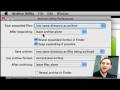
Hidden in Mac OS X is the Archive Utility, a handy little application for compressing and decompressing files and folders into .zip, .cpio and .cpgz formats.
You can also watch this video at YouTube.
Watch more videos about related subjects: Mac Software (89 videos).
You can also watch this video at YouTube.
Watch more videos about related subjects: Mac Software (89 videos).
Video Transcript
Hi, this is Gary with MacMost Now. On today's episode let's talk about a little-know application in Mac OS X called the Archive Utility.
In OS X Leopard you may notice that if you get a .zip file you can extract it without using another program. Just double-click on it and it'll expand. Likewise, if you Control click on a folder or file, you can see that there's an option to compress that file and it will create a zip file from it, compressed, and ready to send somebody else or archive.
Well, this is all done through a little application called the Archive Utility, but you won't find it in the Applications folder or the Utilities folder.
So where do you find it? Well, go up to the hard drive level then click on System
then Library then Core Services and under there you'll find the Archive Utility. Now, when you go ahead and double click to run it you won't see anything right away because it doesn't open up a window, but you do get the Archive Utility menu up here.
In File you get the ability to Create an Archive and Expand an Archive so you can do it manually through the applications rather than through double clicking or control clicking on a file or set of folders.
In the Preferences Archive Utility you'll find a bunch of interesting things. For instance,
you can change where you expand files. By default it's in the same directory as archive, but you can also select a specific folder. Then you can select what to do after expanding. For instance, leaving archive alone is default and you can automatically have it moved to the trash or delete it or move it to a specific location.
Likewise, when you create an archive, the same thing; you can set where to save it
and what to do after archive like automatically move them or delete the originals.
There's also something for used archive format. Now, this allows you to change what is saved, but it will not change it for Finder version of archive utility. Instead, it will only change it when you actually use this archive utility and use either the Create Archive or Expand Archive. So you've got a lot of options here, using this preference pane.
Now what's really cool if you don't want to have to go and find the Archive Utility to change these preferences all the time, here's how you actually add it to your system preferences. Click on Archive Utility and control click. Click Show Package Contents next, you'll get another window and inside of it you'll get Contents and then Resources.
Inside that you'll have Archive.prefPane. If you double click on that, it will actually ask you want to add this to your system preferences. Then, to access all these prefs, all you do is go to System Preferences and there'll be one called Archives that you can now access all those things we just looked at.
So what are these options here? The Archive Format for compressed archive, regular archive, and Zip archive. Now Zip archive is actually the default when using the Finder, but the default for using the application here is compressed archive. Compressed archive will create will create a file called .cpgz which is a compressed gzip archive -- a little bit different from the zip archive, but you get similar manic compression.
A regular archive doesn't compress it at all. It just creates something called a .cpio which is also kind of like a tar file if you're familiar with UNIX. It's basically just a single file that contains a whole bunch of files, but it's not compressed. Or, you can site to save as a regular zip archive.
Now you want to leave the Archive utility where it is, but you may want to go ahead and create an alias to it in your utilities folder so you can access it more easily. Or, if you think you'll use it a lot, maybe even drag it to your doc to add it to your docs so you can easily access it there.
Now there's probably a good reason why this application is hidden in such a way. It's probably not quite ready for prime time. Perhaps in Snow Leopard we'll see a version of this that exists in the applications utilities folder maybe where there's some more options and everything works a little nicer, but until then here's a handy way to access some cool features for compression or decompression on your Mac.
Until then, this is Gary Rosenzweig with MacMost Now.

My question is: does the archiver preserve acls, resrc forks, etc.
Real question, does OS X contain an archiver which preserves all file attributes IN an archive?
It should preserve the file exactly as it is. But this is easy to test -- just try it and see.
I accidental unzipped one of my attachments. This causes my computer not to shut down. What appears on the screen is archive utility cancels the shut down command. Another thing that continuously to appear is the frame that says unarchiving "attachments_2010_02_03.zip...
Looks like the Archive Utility crashed. Just force quit it.
My Archive Utility has crashed - so how do I force quit it? What is the procedure as I have tried and tried to shut down my computer but it just cancels the shut down command. Many Thanks.
Command+Option+Esc.
I have a window open with title of Archive Utility. In upper left corner no red button avail. Yellow and green r avail. Message says: Unarchiving "03290000738-698413-39946.zip"... Cancel button unavailable. Force Quit does not list Archive Utility as option. Program is not located in HD-System-Library as in your video. How do I get this Utility to stop running? Mac OS X 10.4.11
It is probably in a different spot in Tiger (OS 10.4). You could simply restart -- or log in and log out. Otherwise, run Activity Monitor and see if it is there, select it and kill the process from there. But restarting does all that for you.
It's not in my Activity Monitor
I have a Mac OS X 10.6. When I try to archive a zipped file, it automatically creates a new folder and the extracted files are within it. But, I want to extract the zipped file within another folder and with a different name? How can I do that?
Thank You.
Just move the files after you extract them, or rename the folder.
Thanks for this video! Needed help because i couldn't find it in applications. Also thanks for talking about the options. Saved me a lot of time!
I am trying to open a compressed file. When I double-click on it, archive utility begins to open, but then closes. A new file is created, but when I click on that one, the same process takes place. New files are created but won't open, and the archive utility continues to close before it opens. How do I get archive utility to not crash so I can access the compressed file?
There may be something wrong with the file, or it may not be compatible with Archive Utility. Check in with the source of the file.
When I try to unarchive a zip file it starts the long blue line but wont finish, cancel button is unavailable. I have to constantly force quit but never get to unarchive my file. Archive utility was working perfectly all day until it started doing this, now won't open any file. please help. Many thanks.
Hard to tell. Could just be one corrupt .zip file. Try restarting. Try another option (like the free Stuffit Expander).
can I use this to extract .rar files?
Because,I'm not able to select the rar file in the extact file window..
See episode 52: http://macmost.com/opening-windows-mail-attachments.html
Is there a way to download a zipped file without having the archive utility automatically extract it? So that it downloads as a .zip file?
Yes. In Safari preferences, General, uncheck Open safe files after downloading.
Really appreciate it. Thanks!
I experienced using the archive utility yesterday and will never use it again. As a print designer working with large file that reach 1Gb is size sometimes, compression is essential when doing ftp transfers.
I found out the archive utility is very unstable, buggy, freezes the whole system and finder and overrides my stuffit software. By embedding that feature in the OS, apple rather doing us a disservice, since it is not reliable.
Been using a Mac for over 15 years btw, and am technically proficient. I use a Mac Pro 8 core + 14gb ram. So hardware requirement was not an issue.
Where can i get archive utility?!?
It is part of Mac OS X. See 0:45 to see exactly where.
I have a program that is trying to load on my imac 8,1 an the program is : Unarching "Attachments_2011_08_22.zip" I have had this on the mac for over 6months and I try to load it not even knowing where it came from or how it apperaed on my screen. What shoulld I do? (it is under Archive Utility)
Not sure what you mean by "trying to load" -- Is it a file? Have you tried to delete it? Or is it just running (have you not shut down in a long time?)
What is the best method for compressing files? I've used the Archive Utility plenty of times. It works great for myself. But when I've used it to send to Mac and PC users alike, it's it or miss.
Do you have an all time favorite, cross-platform, gold star type compression utility?
Just Control+Click (or right click) and choose "compress." This creates a standard zip file.