
The MacMost.com Guide to Online Password Security
 When you create an account at a Web site you are usually asked to provide a password. What do you choose? Your child’s name? Your dog’s name? Your favorite flavor of ice cream?
Choosing a weak password opens your account up to being invaded. Someone could mess around with your Facebook status and spam your friends. Someone could order gifts for themselves on your Amazon account. Someone could drain your bank account or credit card. Or, worse, they could steal your identity and cause problems that could last for years.You can most likely avoid this by following some very basic security practices. These are things anyone can do. You don’t have to be a computer expert and you don’t have to buy any special hardware or software.
How the Bad Guys Get In
 The first step you need to take is to make sure you use strong passwords. Is your password to any Web site “password”? Or how about “123456” or “qwerty?” These are the three most common passwords. And those that will do you harm will try to get into your online accounts using them.
But they won’t stop there. They will try the top 100 passwords. Then the top 1,000. In fact malicious hackers are taking email addresses and passwords and randomly trying to log into accounts at the most popular Web sites on an ongoing basis.
And you know what? They get in. Every day they harvest valid user names and passwords to big Web sites because someone used a common password.
They don’t even use their own computers for this. Computers all over the world are infected with viruses that turn that computer into a member of a “botnet.” In other words, a malicious hacker just sends a message to thousands of compromised computers and that botnet army then tries user names and passwords all night long, returning any results.
Dictionary Words
 So what is a bad, or “weak” password? Well, the list of the top few thousand common passwords is a start. But then the entire dictionary is next. Any real word, one that can be found in the dictionary, can be selected at random by a bot and tried as a password.
Next, include names, places, and book, movie and song titles. Anything that can be found written down in a book or article of some sort is probably on a list of possible passwords that you might have.
But that’s not all. What about dates? Is your password your birthday? Your spouse’s birthday? Your child’s birthday? Birthdays follow only a few common formats and come from a set of numbers that only includes 12 months, 31 days and 80 or so years. That’s less than the number of words in the dictionary!
What if you are clever and use a word, but disguise it. Maybe a zero instead of the letter o, or a 3 instead of an e. Clever, yes, but that could still be guessed by a bot.
In fact if you use any of these kinds of passwords, given enough time, your account will be compromised.
So here is what not to pick as a password:
- Dictionary words
- Places and names
- Keyboard sequences
- Dates in any format
- Words disguised with letter substitutions
Strong Passwords
So what should a good password look like? Here are some rules to follow:
- Use letters and numbers
- Use upper and lower case letters
- It should be at least 8 characters long
- It should be completely random
While it would be so cool to have your password stand for something or have a deep meaning, resist that temptation. Just don’t do it.
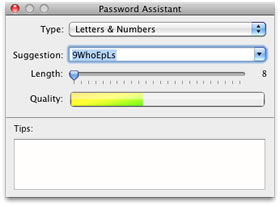 Instead, use a program to randomly create a password for you. One method of doing it on the Mac is to use the Password Assistant. Go to System Preferences and then Accounts. Click the Change Password button. Then, next to the “New password” field, click on the key button. This brings up the password assistant. Set it to “Letters and Numbers” with a length of 8 or 9. You will get a list of suggestions in a pull-down menu. You can choose one and copy it to your clipboard. Then close the password assistant and cancel the Change Password action, unless you really want to change your Mac account password.
Save Your Password in a Secure Place
You may have heard someone say that you should never write a password down. This does create a security hole, sure. But only if someone is specifically targeting you — in which case this is not the guide you should be reading. You need professional help.
You should write down your password and store it somewhere. How far you go to “hide” it is up to you. But the important thing is that online malicious hackers cannot spring out of your monitor and start searching your desk. They can, potentially, get access to your computer files. So if you store your passwords in a file on your computer, make sure it is an encrypted and protected file. I’ll mention some ways to do this later on.
One Step Further – Different Passwords
I recommend this next step to everyone, but I realize it is asking a lot. You should have a different strong password for every online account.
Now you may have hundreds of accounts. Having hundreds of passwords means you cannot possibly remember them all. But with the help of your browser, the Mac Keychain, and third-party programs I’ll talk about later, you don’t have to.
The problem with having the same password for many accounts is that all of those accounts is only as secure as the weakest Web site. If one of those sites doesn’t secure their passwords, or has a rogue employee, or does something stupid, then a list of email addresses and passwords could be compromised. It could be a stupid game site that you could care less about. But what if your email and password are the same as your Amazon account? I’ll bet a lot of them are.
So try to use a unique password for each Web site.
One Step Even Further – Change Your Passwords
You should also change your password often. Now this is where you can prioritize. Amazon, Facebook and your email account should get changed often. A password for a fun little game site or blog might not be as important. There may be no personal information there, and if you lose your account, you can just get another one.
The reason you want to change your password often is that a compromised user name and password may not be used right away. It could be days or months before your stolen password is used for something bad. So if you change your password, say, every month, you may avoid trouble.
The Bare Minimum
I really hesitate to talk much about the last two sections. I’m afraid that people are gong to think: “Create strong passwords, have a different one for each site, and change them all the time? That’s too much! Forget it. I’ll stick with using abc123 for everything.”
If you find yourself thinking that, please consider that you give yourself quite a bit of protection just by doing the bare minimum:
Use only strong passwords
Give your most critical sites unique passwords
What are critical sites? The obvious would be your bank accounts, any shopping site where you store your credit card information, your email accounts and any Web hosting accounts. Also include any services that have high-level personal information, such as accounting sites or personal management sites.
The Most Important Account of All
Can you think of which of your online accounts is the most critical? It is your email account. If that is compromised, then everything is compromised.
Consider that when you lose a password to a site you can always press the “I forgot my password” button on that login page. What happens then? You get an email with your password, or a reset code of some sort. So just by reading your email, you can get access to almost any site you are signed up for without your password.
If someone up to no good got access to your email account, they could request all your passwords, get them by looking at your email, and have access to everything.
So it is critical that your email account have a strong password, and a unique one not used for anything else. And you should probably change it often.
How To Remember All These Passwords?
If you are signed up for 100 different site with 100 different passwords, how are you supposed to remember them all?
Fortunately, you don’t have to. Whether you are using Safari or Firefox, your browser will offer to remember passwords for Web sites. When you enter a user name and password on a site, the browser will ask if it is OK for it to remember that password. If you say yes, then you won’t need to remember the password anymore. The browser will fill it in for you.
How can this be secure? If you don’t need to use a password anymore, then can’t anyone get into your accounts?
Well, yes. But they’d have to be sitting at your computer to do it. So it is all a matter of how secure your physical space is. If your Mac is at work, you will want to make sure you set your System Preferences, Security settings appropriately so you require a password to log into your account in the first place.
If your Mac is at home, then consider that if someone breaks into your home your Amazon password may be the least of your worries.
Third-Party Password Programs
 You can get even more help in securing your passwords from some inexpensive applications. The program 1Password is built specifically for this. And it is a genius piece of software.
It acts as a secure wallet for all your user names and passwords. You can add passwords and it stores them in an encrypted file on your Mac that you can access only if you have the master password. It also works with Safari and Firefox to assist you when you log into a Web site.
So when you get to a site and it asks for your password, you just press the 1Password button and 1Password will prompt you for your master password and then fill in the Web form.
This way, each and every Web site you visit can have a strong, unique password. In fact, you can easily go beyond 8 or 9 characters and use ridiculously long and strong passwords for every site. The only one you need to remember is your master password.
Plus, changing passwords is easily done, as you can simply go to the Web site’s “change my password” page and 1Password will suggest a new strong password and then record it on the spot in its database.
Backing Up Your Passwords
A program like 1Password also helps in that it stores all your passwords in one place on your computer — and you can back that file up easily. If you use Time Machine, then you have a backup there. But you can even store a copy of the file on a server or backup service. It will be secure because it is encrypted and useless to anyone without the master password.
The beauty of backing up your passwords is that if your computer is stolen or the hard drive simply fails, you can get your passwords back by simply restoring that file.
If you don’t use a program like 1Password, then you should still have a backup of all your important passwords. It could be an encrypted file, or even a printout of the passwords stored in a safe location.
What If I Travel With a MacBook?
 Those of us that take our computers out of the house are especially vulnerable to getting our passwords stolen.
If you laptop is swiped, guess what are the most valuable things on it? Your passwords. Someone could just open up your laptop and start reading your email, or logging on to shopping sites you regularly use. Your browser will have those passwords in there, ready to go.
Your first line of defense is to make sure you have turned on “Require Password” under System Preferences, Security. This will at least slow them down. They won’t be able to start using your computer right away.
Another step you can take is to turn on FileVault in the same preferences window. But this is an extreme step. FileVault will encrypt your entire user folder. This means that just the act of using you computer requires your Mac to encrypt and decrypt every piece of data. It is a good measure when security is more important than anything else, but not for the typical user.
What you’ve got to be ready to do at any moment is to change your passwords. If your laptop is stolen, you’ve got to get to your backup list of user names and passwords and start changing them all, starting with your email account. Don’t wait until you get a replacement computer. Find a friend with a computer or seek some professional help to get those password changed right away.
WiFi Connections
Traveling with a MacBook also brings up the subject of unsecured wifi networks. If you travel, then you probably log on to the Internet through a wifi network at your hotel, the airport, the conference center or even a coffee shop.
How do you know which are secure and which are not? The rule is simple: assume they are all insecure. Even if the establishment itself is beyond reproach, a malicious hacker could be “listening” in on the open wifi network and stealing the passwords of everyone that uses it.
So follow some simple rules when using any wifi network. Anything you see or type is insecure unless you are at a secure Web site with a https address. Look for the “s” and a little padlock symbol at the upper right corner of Safari. Many Web sites will offer both secure and unsecured versions. For instance, you can go to http://gmail.com and https://gmail.com. Always use the https version.
Make sure you are logging into your email account with a secure connection. Knowing if it is or not depends on your ISP. They should give you that information on their Web site — or call them an ask about it.
Using Other Computers
Even more insecure than using a public WiFi network is using a public computer. Any computer that is not yours could have key logging software installed, for instance. So even if you are logging on to your secure Web site with a string password, the keystrokes you type could be recorded and sent along to someone — even the keystrokes of your password.
But even if the computer hasn’t been compromised in this way, IDs and password could simply be stored in the browser. Logging out of your account when you are done and then cleaning the browser’s cookies and cache is good protection, but not perfect. If you absolutely need to use a public computer make sure you change your password after you are done and monitor your accounts closely to make sure they haven’t been compromised.
Physical Security
If you have done everything else and are looking to become even more secure, examine the physical security of your computer. Is it at work, or do you travel with your MacBook? How easy is it for someone else to get 15 seconds on your computer without you knowing?
If someone else can access your computer, even for a very short time, they can get passwords in many ways. Make sure you have a password set for your OS X user account and make sure it logs you out automatically after a very short period of non-use.
Also, make sure that if you have written down your passwords that they are secure and hard to find. If you want to feel like a spy, plant a fake set of passwords that someone will find before they find your real set of passwords. Or, hide your passwords in such a way so you will know if someone has had a look at them.
The Back Door
So you have a strong password. You’re set, right? Nope. Almost every online account has a back door. It is usually called your “secret question.” The problem is, it is not so secret.
Maybe you answered the question “What is your mother’s maiden name.” Or, “What street did you grow up on?” Something like that.
Now it may be impossible for someone to guess that you grew up on “Cedar Road.” But what are the chances that your street is one of the 1000 most popular street names? How about the 10,000 most popular? Secret questions are even more susceptible to dictionary attacks. “What is your pet’s name?” Bet it is in the list of the top 1000.
The best way to seal your back door is to see if the online account allows you to choose your own question. Then simply “What is my backup password” or something similar and choose another strong password. Write it down or record it in a password program.
If you can’t choose your own question, then lie. Give your mother’s maiden name as a string of random letters.
Passwords Never Die
One final thing. Make sure your passwords are stored in a place where a trusted loved one will be able to get them if you should pass on. Think about it for a second. If you die, what will happen to the money in your bank accounts, or your Facebook profile, or your Amazon shopping account?
Online services are notoriously bad at handling death. If your survivors want to shut down your Facebook profile, or access your email list to contact friends, they may find themselves having to jump through frustrating hoops to do so. But if they just had a list of passwords that they could find in the bottom of a safe or bank box, it would be so much easier. This is where something like 1Password really comes in handy. All they would need is that master password and they could get up-to-date password for all of your accounts.
It may seem silly to think of this now, but if there are 250 million people on Facebook, and the average age of death is 70, then about 10,000 Facebook users die every day. The actual number is probably much lower because most Facebook users would be much younger than 70. But you get the idea. That’s a lot of abandoned accounts every day that some poor spouse, parent, child or relative has to figure out how to shut down.
More Suggestions
Leave a comment below with more ideas about how you can keep your passwords secure. This is by no means a definitive list. There are probably other methods to create strong passwords and keep them safe — maybe even ideas that can make the whole thing easier. Share your thoughts with the community.


I noticed you didn't suggest using punctuation marks in passwords. Any reason why not?
I love 1Password - - so easy, efficient, and...secure! Before I adopted it, I used to make passwords of old movie star names (I'm one of those guys nearing 70) together with a number in between first and last names, e.g., Boris24Karloff or Buster81Keaton. Certainly not the strong random passwords that are recommended, but would bots guess these?
This document is a GREAT help!
Two main reasons: 1, some online sites may not accept them in passwords. 2, they make it harder to remember. I don't want anyone to think this is too tough and just use a dictionary word. Oh, and 3, passwords with punctuation are hard to type on the iPhone.
I'm just wondering how the 1Password program would work so that I could use my passwords across different computers (laptop, home pc, phone) and different operating systems, i.e. mac, windows, android, etc. Any ideas if there is a way to do this before I start changing passwords to something I can't remember?
You can store the 1Password database file in a shared location accessible to all (iDisk, DropBox, etc). That would take care of your Macs, at least. But if you are really using that many computers to log on to important services, then you may just have to choose between convenience and security.
Keep in mind that you can also run 1Password (the application) and view your passwords. So don't have to worry about forgetting them.
After reading your guide and beginning to use 1Password to strengthen passwords I've come upon a certain airline site. I can access my account with a simple four-digit PIN. There is no password feature as far as I can tell. Is there something about PINs I don't know that make them more secure than I think they are? Is the PIN tied somehow to my specific computer?
Perhaps they use a simple pin because there is really no special data stored in the account? A pin is just a password that is only numbers. Less secure, but usually issued by the service, instead of you picking one.
Airline pin numbers--I just went through several of my Airline accounts--Delta requires only account number, pin, and last name. This gives access to frequent flier milage plus credit card information
How safe is it to allow a site to store my credit card number?
As long as the site follows good security measures, very safe. But it is hard to know which ones do a good job. It is a good idea to check your credit card company's policies for stolen numbers. Most have very good policies that will protect you and even help you out when something goes wrong.
But think about this: how easy is it for a waiter to steal your cc number when you pay by card at a restaurant? Or, for that matter, a clerk at any store where you use your card?
Here's a tip I use: If I have to log on to my email account at a public computer, I type the characters of my username and password in some strange order. For example, if my password is secret12, I would type sce1, then use the mouse to insert the other letters in their proper place. After logging out, I clean out cookies and history.
Another thought on that public computers thing: How about using this fancy "private mode" that comes shipped now with every (close-to-)modern browser *chrm*even*chrm*internetexplorer*chrm* - What do you think about that feature @Gary ? More secure than cleaning up history + cache + cookies or just a "do-it-all-for-me-in-one-click-so-I-cannot-forget-anything" ?
Private mode isn't for that. It will cover your tracks, sure. But if someone has installed a keylogger on that computer, or on the public network, then private browsing won't help at all.
thanks for info...
What about password protect you can try to use LoginTrap.It’s prog can capture every login events by using iSight.It really good prog.
Why do I need 1Password when I already have Mac's Keychain? Thanks.
See the comment answer below. Also see their site for a whole list of features. It is not the same as Keychain. We did a video interview with them a while back too. http://macmost.com/1password.html
What's the difference between 1Password and Mac's Keychain?
1Password allows you to store all sorts of things and call them up as you need them -- filling out forms and passwords on Web sites, etc. Check out their site and you'll see the feature list.
License plate numbers, along with a meaningfully (to me) changing code of some kind helps me to keep things right.
lastpass is another good password program and it is free and i think easier to use than 1password. just my experience
LastPass is a fantastic solution in my experience. I've been using it for ages now, and find it so valuable, especially when using multiple devices... None of this having to share/sync a database file with a third party. LastPass has really good plugins for all browsers, plus iOS and Android. Blows 1Password away especially when using Windows, Mac and Linux in a work day!
How can I protect my Folders in Mac OS X with a password? With Google i found a solution with the disc utility programm. Is that a good way?
See episode 46. http://macmost.com/protecting-files-with-a-password.html
nice, thank you!
Hi Gary, i have a problem with my yahoo mail. it's been hacked i guess.. for 3 straight days i couldn't access my account, yahoo keep saying i already changed my password - which i didn't. this email also used for my facebook account.
when i want to change my password yahoo asked to choose which primary email to be used. apparently, there's one unknown email already selected & i couldn't delete this email. any suggestion? many thanks for your kind help.
So you can get into your account? If so, then you've got to keep looking through the settings to see if you can clean it up -- change passwords, secret questions, emails listed, etc. I'm not that familiar with Yahoo's account system so you may want to find help from someone that is.
Thank you for suggestion and i will try it. Will let you know soon
1Password is Mac-only, so what do you do if you have to use Windows as well? A solution that works across Mac OSX and Windows (7/Vista/XP) is to place your login data and passwords in text files stored in an encrypted drive created with TrueCrypt (TrueCrypt.org).
TrueCrypt is free open source software that is licensed for commercial as well as non-commercial use. It is easy to use and has the very attractive benefit that an encrypted drive created under Windows can be opened and modified on your Mac (creating it on the Mac first didn't work for reading it under Windows).
I have an encrypted drive on each of my computers and one on a USB hard disk (NTFS formatted) that I use for device synchronization. I store my password data in small text files (I have over 100 files, one per account) in the encrypted disk. I use file synchronization software to synchronize the contents of the different drives. You could, of course, just keep copying the TrueCrypt file back and forth, or keep it only on the USB device and not on your Mac/PC, but this approach increases the risk that you will make a mistake one day (e.g. lose your USB drive, or accidentally overwrite the latest data with older data). You can even use the TrueCrypt software from a USB stick without actually installing it (although it does require admin rights to run it in this manner :(
This approach does not give you the flexibility of 1password (you have to copy and paste passwords into your browser on first use) but it is better than nothing.
TrueCrypt also supports Linux SUSE and Ubuntu flavors, but I haven't tested this approach with those systems. Note that to write to a NTFS disk from a Mac you need to install 3rd party software such as NTFS-3G/MacFUSE (Mac OSX supports reading NTFS but not writing to it).
There is 1Password for Windows. http://agilewebsolutions.com/onepassword/win
But it is important to note that 1Password does much more than simply encrypt your passwords. One of the main things that 1Password does is automatically match your passwords with the site you are on. This is very very important. Why? Because "automatic" means that if you are at amazon.com it will use your amazon.com password. But if you have been tricked and are at amaxon.com (you don't notice that you are at the wrong site) then 1Password protects you because it won't match the domain and the password, so you won't give someone else your amazon password. See what I mean? That is a very important feature of 1Password that you simply don't get with another method like this.
What can you do if you suspect a keylogger is on your Mac?
What makes you suspect that? Usually a keylogger is installed by the owner of the computer. Does someone else have access to your Mac?
you can capture your password using ProteMac KeyBag PRO.It's also help for password recovery.
Great article Gary.
Can anyone using LastPass or 1Password comment on how effective they are at locating and auto-filling the name and password fields on websites? Sometimes Safari will fail to fill in a name and/or password, either because the moron who coded the site thought he'd do me a favor and set the noautocomplete flag, or because the site uses so much fancy javascript that it obfuscates the purpose of the fields.
Example: order.chipotle.com. Safari happily offers to fill in my login (email) but not the password. Very frustrating. I would fine 1Password and LastPass very compelling if I knew they were better at this than Safari.
I know what you mean. I find 1Password to be better than autofill, but not perfect. Probably nothing is as not only do site developers set the flag, but they often change the names of the fields to something that is hard to recognize.
Interesting fact, though: often web developers have to change the names of fields because otherwise spam bots will come by and fill them out making guesses.
1Password has a free trial, so you can test it out yourself.
Thanks Gary. I may try 1Password out. Sadly, my work firewall blocks lastpass.com, probably because they don't want us storing our work passwords online.
I'm familiar with the practice of changing field names to thwart spam bots, because I've done it! And it works pretty well, at least on low-traffic sites like the ones I run.
P.S. Apologies if I've asked this question around here before. This whole conversation is starting to feel familiar.
I had an hotmail account for about 7 yrs but about six weeks ago i started getting emails from Apple Support Discussions Group,and they just kept coming. I was deleting them at first,and i also asked for help none came, I had a look about 2 weeks ago,and there was over 6,000 emails all from Apple support. I received a nasty email from a website called Ned Batchelder.com the site is about keyboard Symbols. This person was the one that sent the email,and it was very personal. You had to leave your email after you asked about a topic,its the same system as yours. I was starting to write about this, i stopped and went to his site and if you go down and you will see my name Anthony Cotton,and if you click on my name it takes you straight to the MSN Website. This person can write programs,and he his clever. Finally i received an email from a tech guy, saying that we do not support Macs or Safari and we can do nothing about bulk emails.
I left and you can see my new email for your site. Do you think that this person can be doing it. Gary
That probably has nothing to do with password security. Your email address was probably taken from one of your posts at Apple's site, or some other way (or guessed) and you are getting normal spam like everyone else. Don't ever assume spam is coming from where you think it is coming from. "From" can be faked and usually is for spam.
A thing I didn't understand:
If an hacker is tracking my computer...if I write my password when accessing to an account...can he see what I wrote and have access to my account?
Depends on what you mean by "tracking my computer" -- how are they doing that, specifically?
Sorry...I would like to say "targeting my computer". It's about this paragraph...I didn't understand very well what you meant:
"You may have heard someone say that you should never write a password down. This does create a security hole, sure. But only if someone is specifically targeting you."
What you mean write a password down? And, what's that of a security hole?
I mean literally writing down your passwords on a piece of paper and putting it in a drawer or something. That creates a security hole because the paper can fall into the wrong hands. But this isn't much of a threat unless someone breaks into your house or you leave the paper where someone can read it.
I use the portable version of KeePass. It's multi-platform (Mac, Linux, Windows) and runs from a USB stick if you want. All of my passwords are in this database and it does not matter what platform or computer I use. Not as glitzy as some other solutions but it works, runs on any platform is totally free and you are support the open source movement. Thanks for reading.
Rick
Such a good document, are there any alternatives to 1password? because this app is pretty expensive even though it's totally worth it.
1Password works pretty well. But I wonder about using the standard upper-lower-case-number-symbol passwords, as opposed to longer passphrases... http://xkcd.com/936/
I thought of that too when I first saw that comic. But when you are using 1Password and can have nice and long random strings I think it is as string as you will ever need it. Plus the idea of phrases fall apart when you have cases where passwords are limited in length, or when you have to occasionally enter them with alternate devices (like TV remotes).
I've put together a simple yet very secure password generator here:
http://batterystaple.com
It's based on the "short jumble of common words" idea in the xkcd webcomic referenced above by David
Good advice on passwords! But what about email addresses? Is there any security or privacy benefit from having multiple email addresses? For example, one that you use with online banks, and a second one for general website use? Thanks
That would be more secure, yes. But it can also be quite an inconvenience. A strong password will be just as much protection.
Gary, thank you very much for this wake up call! After reading about halfway through your article I was feeling pretty smug, then I slowly began to feel more and more uneasy.
For my online accounts, very few have the same passwords, I don't use dictionary words, places and names, keyboard sequences, dates in any format, or words disguised with letter substitutions, plus I've been using 1Password for a couple of years now.
BUT… my most secure passwords are not those I use for my email accounts, some passwords have not been changed for many many years, and my wife does not know where to find any of my passwords!
Okay, so this weekend I started to do something. The xkcd cartoon struck a nerve, so I tried changing my primary business email password to one of those four-common-words-jammed-together types on the batterystaple web site, but it was apparently too long for the server. Instead, I opted for an 8+ letter and number combination like I had before.
So, my questions, before I learn the hard way, are how many web sites will accommodate long passwords of the batterystaple kind, and how difficult are they to crack if I only use three words and no more than 15 total letters? Can someone explain the math behind the xkcd cartoon - i.e. how long would it take a computer to crack my 15 letter password using 1000 guesses per second?
The math comes down to the fact that there are tens of thousands of words, but only 26 letters (maybe 100 when you include upper, lower, numbers, symbols, etc). So 3-5 random words is harder to guess than 8 random letters.
But phrases have too many other drawbacks: password length limits are one. Another is the fact that we enter passwords in on mobile devices and TV devices --- I couldn't imagine entering a 30+ character password into some of those using a remote control.
Gary, I found some answers here - https://www.grc.com/haystack.htm
is it a bad idea to use one password for more then one site?
In general, yes.
I didn't see mention of online services that allow you to login and access your passwords from anywhere, any device. Am I safe having these programs create strong passwords but them store them for me?
If you trust the service and they encrypt properly, then it should be ok.