
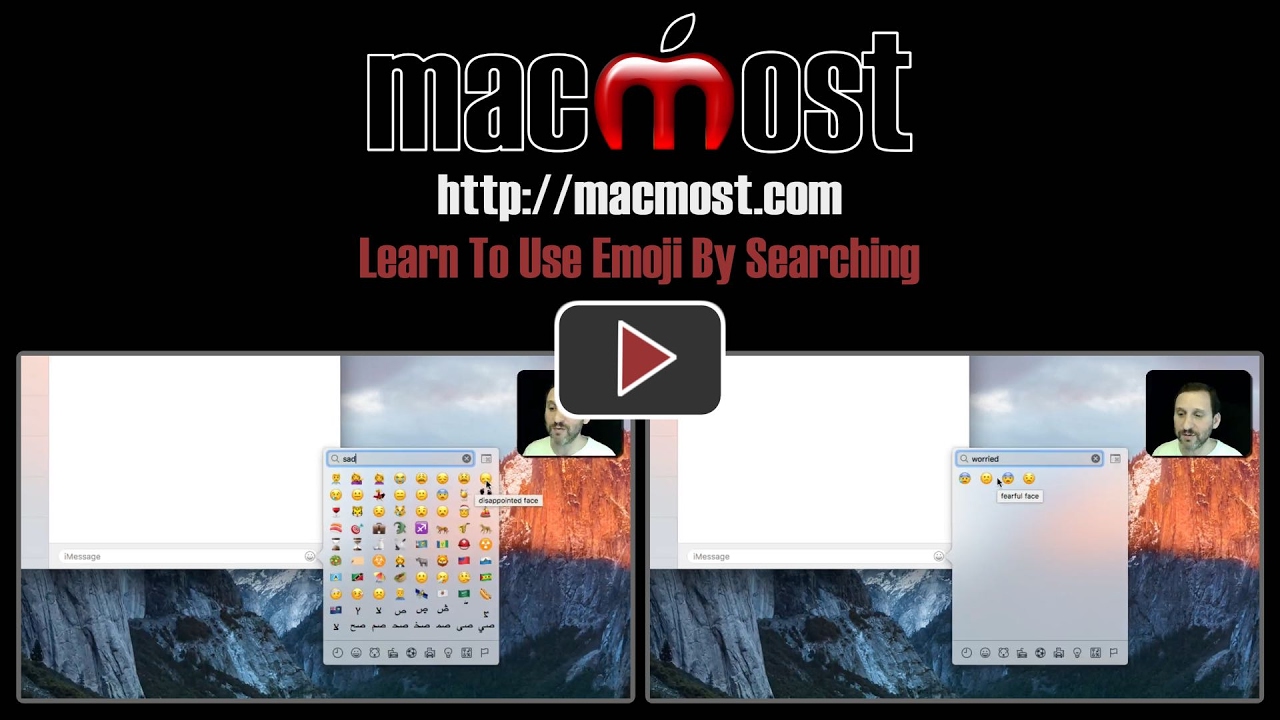
If you having trouble figuring out which emoji characters to use in Messages, you can use the handy search function to look for them by keyword. It can be tricky, however, as you often have to try multiple keywords to find what you are looking for. You can also move the cursor over the text to see the exact description of the character before you decide to use it.
▶ You can also watch this video at YouTube.
▶
▶ Watch more videos about related subjects: Messages (26 videos).
▶
▶ Watch more videos about related subjects: Messages (26 videos).


Thanks. Now I can try to select. BUT a bigger question, perhaps a future video, WHAT does the emoji that I received in a message mean? Is there a decoder ring?
Jerry
How can I make the emoji bigger?
Linda: To see it clearer? Or to send it larger? No way to do either, but you can always use accessibility functions on your Mac (Zoom) to see it clearer.
Again, another very informative video. I did not know about the search feature. I also wanted to thank you for the subtitles. While I don't have a problem, generally ( darn...no emojis available here) I think where English is a second language it would be very helpful.
Thanks for another useful tip, as always, Gary. I just wish I could have a similar search function on iOS, which is where I use emojis most! Messages now have a pop-up suggested emoji when I type a related word, but it's not the same as being able to search and it only exists (as far as I know) in Messages.
Linda - To make an emoji (in an email) larger I've highlighted it once I placed it in the email, and then changed the font to a larger text. This works in my outgoing mail although I've never checked what it looks like to the recipient. I suppose I should email myself and check -- hold on .. just did that and it works fine.